
New Launch as of today 3/10/2026
Process that must be followed per Adam.
Mandatory: You must check all your orders daily , if before the end of the day the order has not shipped (status 66/77) , the panel K Expected Ship Date must be updated and move to the future date.
| Mandatory Per Adam : ALL orders processed must be managed by the person who entered the order. | If Order does not ship on the selected Panel K Expected Ship Date The Panel K Expected ship date must be updated to a future date inside the same month | Note: See Exceptions |
| PO is submitted | Expected Ship Date Select 1 week out | View exceptions on line 2 |
| Exception: If PO comes in within the last day of the month Or 1 to 3 business days before the end of the month : | Expected Ship Date: Select: 1 week out in the next month | This does not include DIW orders |
| If PO that have back orders | Expected Ship Date: Select : 1 Month out in the next month | |
| Exception: DIW PO's | All Areas must reflect 100 business days out from the date PO was sent our to us to process: Order Processing: Main Ship Date location Order lines Ship Date Panel K Expected Ship Date | Note: Unless otherwise advised to choose a specific ship date. |
| When can I NOT change an order -OR- an order line/lines | If the Full order lines are showing status 66 or 77 | You will only update order / order lines in status: 22 (Back Order) 33 44 99 (Cancelled/Deleted) |
-Non DIW (Direct Import) orders & OOS Orders
-When choosing your Expected ship date, if order does not ship by that date , it is mandatory to move the date out to the next business day.
- If PO comes in 1 to 2 business days and including the last business day of the month days and including
Orders not shipping by end of month.
-Order date line needs modified to the beginning of the next month
-If multiple order lines you will need to modify each order line as shown below.
How to change the order line
Step 1: Go to OIS300
Search and Highlight order
Step 2: Right Side Tool Bar
-Click Order Lines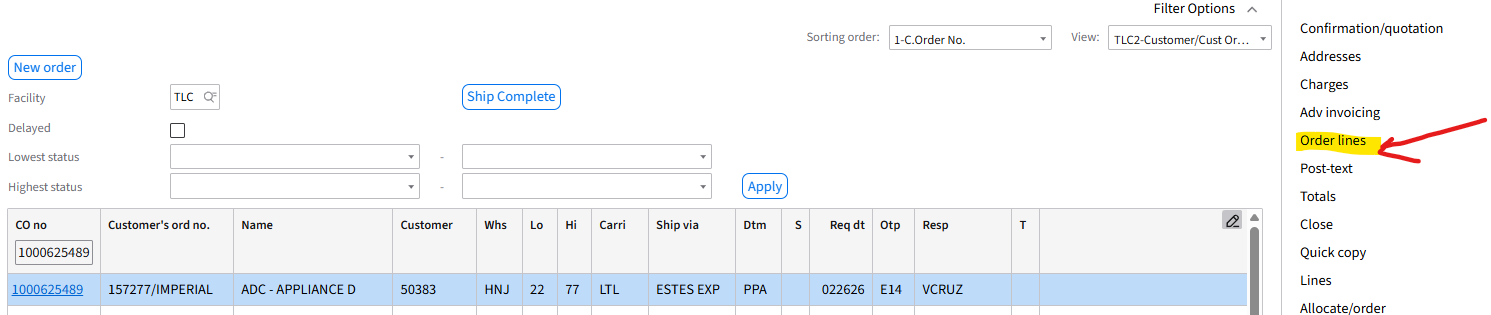
Step 3: Right Click on highlighted line
- Select Change
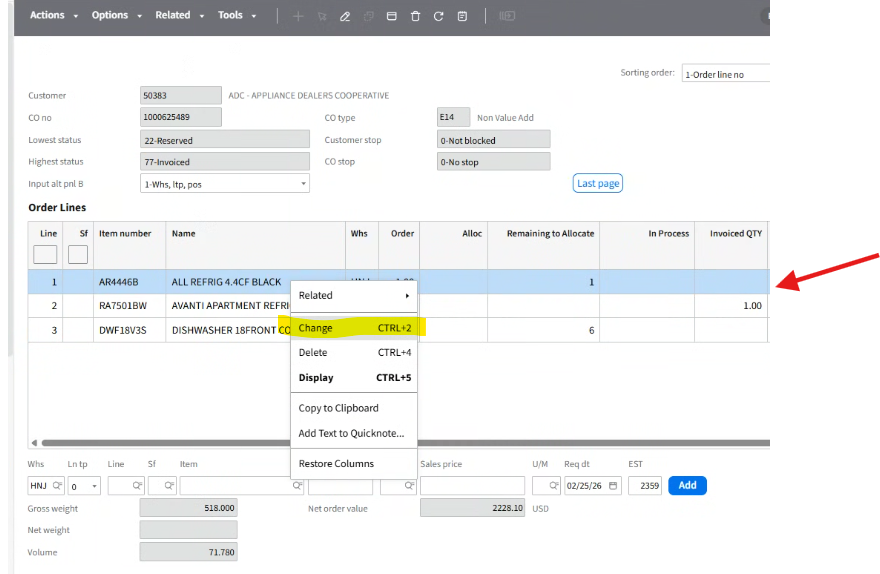
Step 4: Screen Populates
-Click Panel K
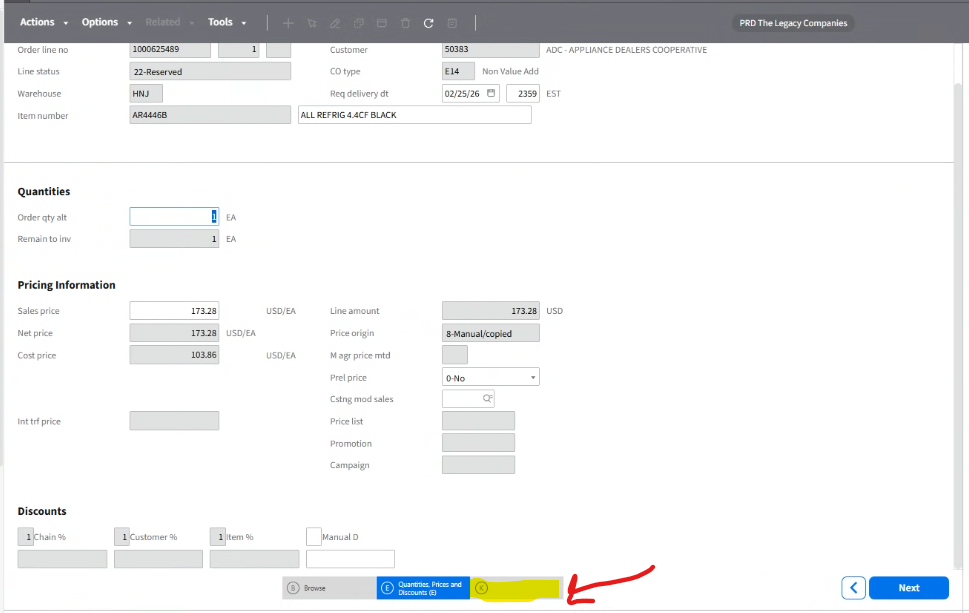
Step 5: Pop-Up Box Populates
-Click OK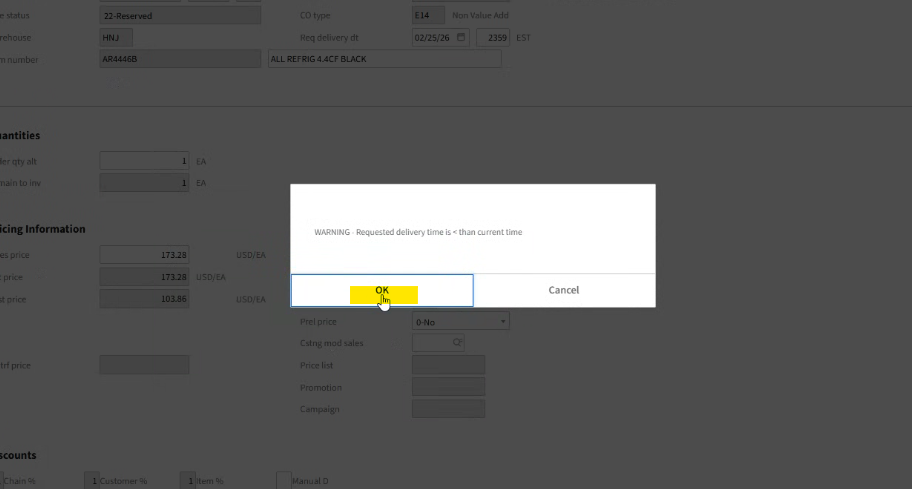
Step 6: Panel K screen Populates
-At the Exp Ship Date
-Click the Calendar Icon
-Change to the beginning of the next month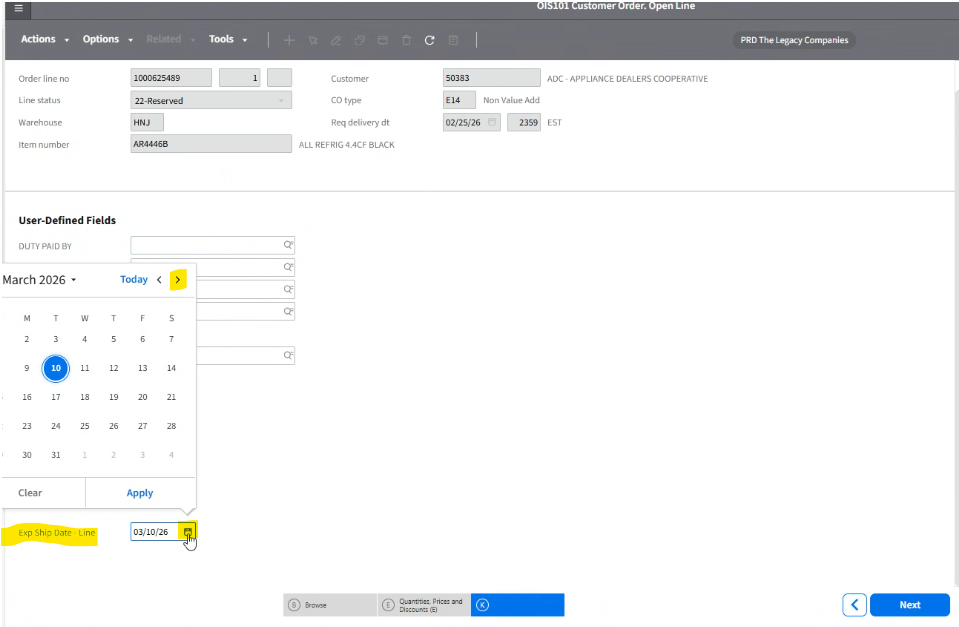
Step 8: Your chosen date reflects
-Click Next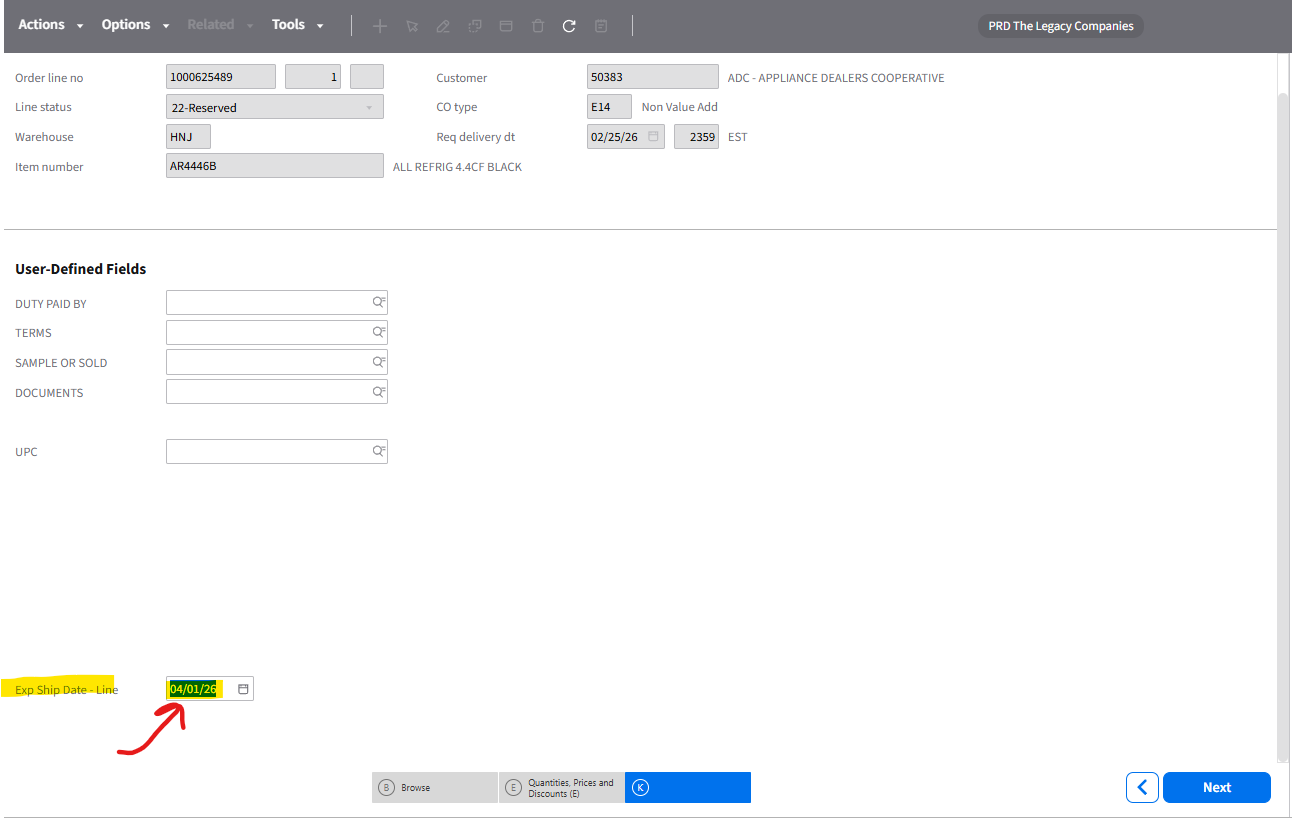
-If you have more order lines to update (See below) - Repeat the process
-Once order lines/lines are complete -> Click Action Close
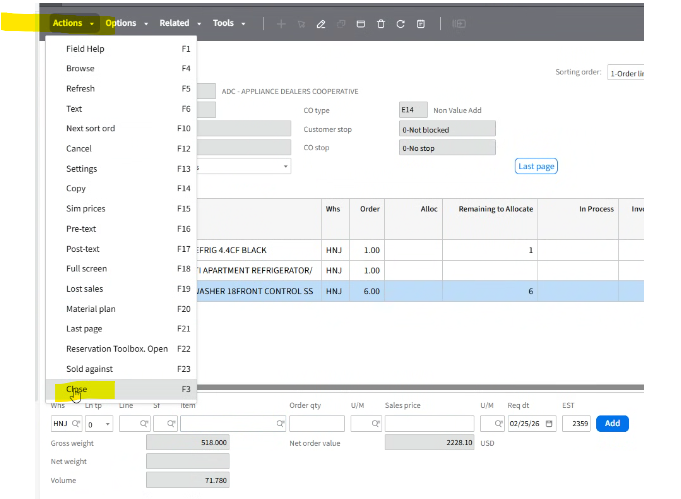
You are now back to Main screen