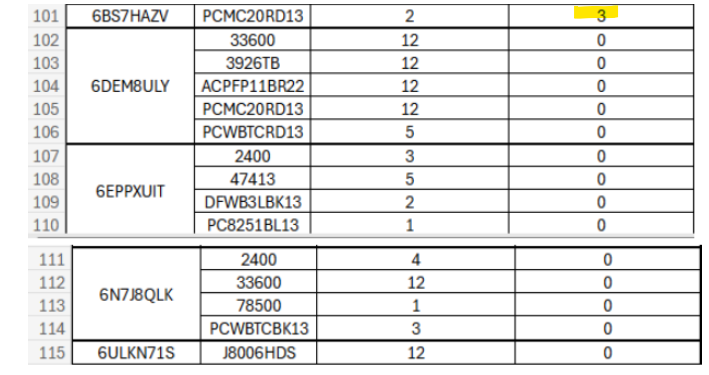
Enclosed is the Amazon Cancellation project Adam is having OP360 Agents assist with.
1. If SKU ends in "AZ" -> Enter SKU Number , but omit the "AZ" at end of SKU
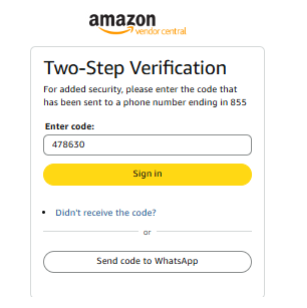
2. When Signing into portal please remember to send Amanda & Rebecca a message along with a Snip It advising you need a verification code. Once provided code is time sensitive.
Rebecca's Log IN information:
Username: rmorris@thelegacycompanies.com
Password: Woobie218!
Amanda's Log In information:
Username: amcdowell@thelegacycompanies.com
Password: Will auto populate
Team breakdown for order line cancellation
(Scroll down to bottom of article for details)
Excel Order File; Please convert to google sheet
Amazon Order to Cancel 12.8.25.xlsx
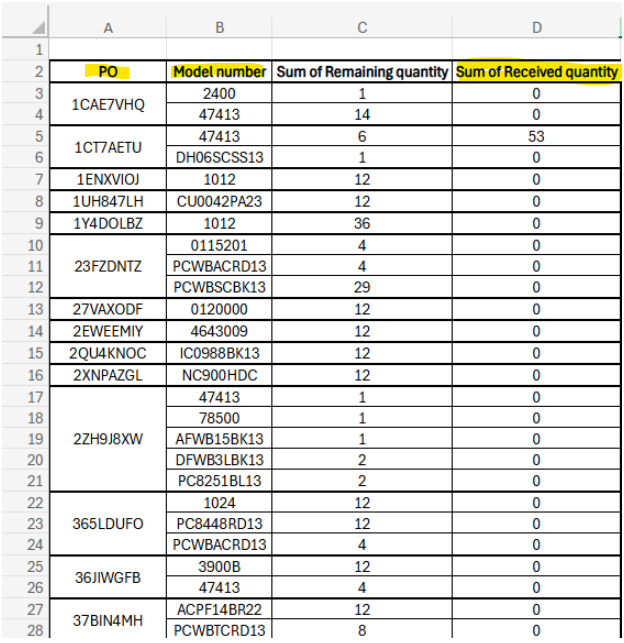
Excel file overview:
1. Column A: Is the PO Number
2. Column B: Is the Model/Model Numbers (Reminder if SKU ends in "AZ" -> Omit the "AZ" )
3. Column D: Sum of Received quantity (This is the quantity you enter on the product line in the "Quantity Received" field)
Step 1: Log into Amazon Portal
https://vendorcentral.amazon.com/ap/signin
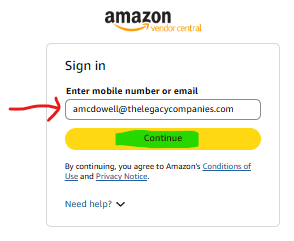
Step 2: Sign In Box Populates
-Enter Amanda's email address: amcdowell@thelegacycompanies.com
-Click "Continue"
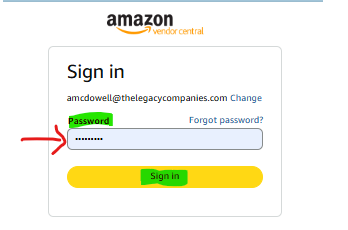
Step 3: Secondary Sign In Box populates
-Password should auto populate
*Please Note: If Password does not auto populate -> Send Amanda and Rebecca a message along with a Snip It advising the Password did not auto populate.
-Once you receive & enter Password
-Click: Sign In
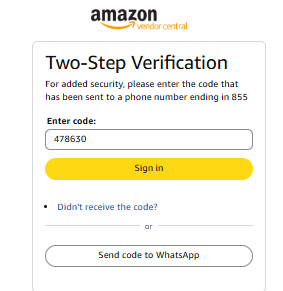
Step 4: Two Step -Verification Box Populates
-Send a message to Amanda in the Amazon Group chat advising you need the Amazon code (& Provide a Snip It)with a Snip It of the Screen below
Amanda's Message:
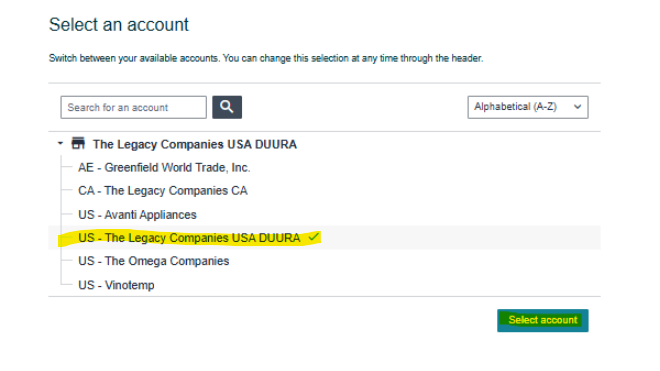
Please Note: After you sign in I’ll get a passcode on my cell to enter into the last screen. Note, if using my login you’ll have to do this twice. If using Rebecca’s you’ll do it only once. I have no idea why that is. Then this screen will pop up. Select the USA DUURA account.
Amanda will send you the code- enter the code
-Enter Code:
-Click Sign In
Step 5:Pop UP Box Populates
-Select: US- The Legacy Companies USADURRA
-Click "Select Account"
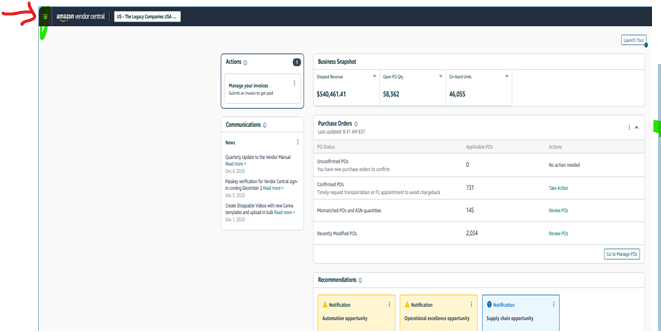
Step 6: Screen Populates:
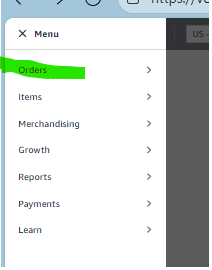
Step 5A) In Tool Bar : Top left side of screen -> Click the 3 lines (Highlighted in Green)
Step 6B) Menu Drop Down populates (See Snip Its Below)
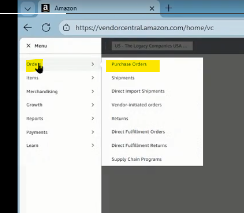
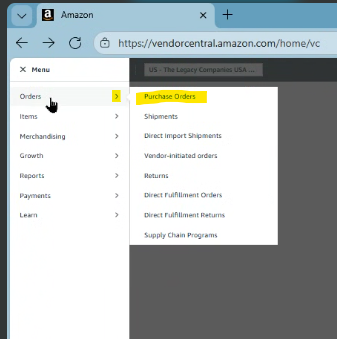
-Hover over : Orders
Next drop down:
-Click (Select) : Purchase Orders
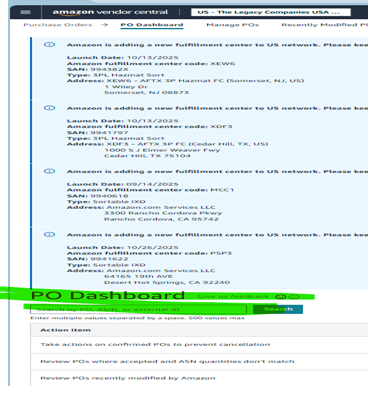
Step 7: Screen Populates:
-Scroll to bottom of the page
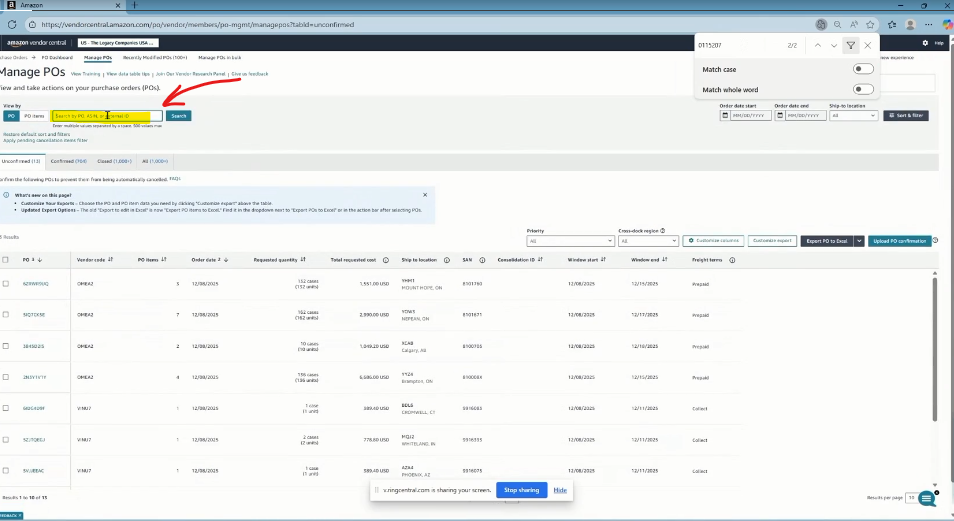
-In the PO Dashboard Field--> Enter your PO Number
-Click "Search
Step 8: Screen Populates (The PO details will reflect)
-PO Number will show (Double check to be sure correct PO)
- PO items (PO Product lines)
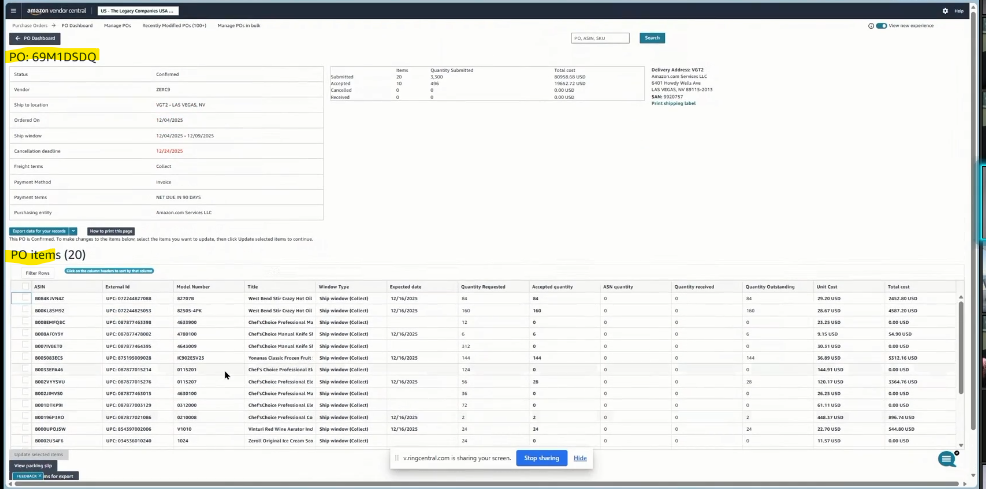
: Snip It below is a closer look of the PO section in Snip It Above
-Please be sure this is your PO Number
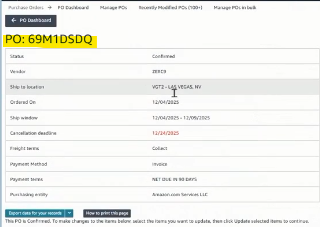
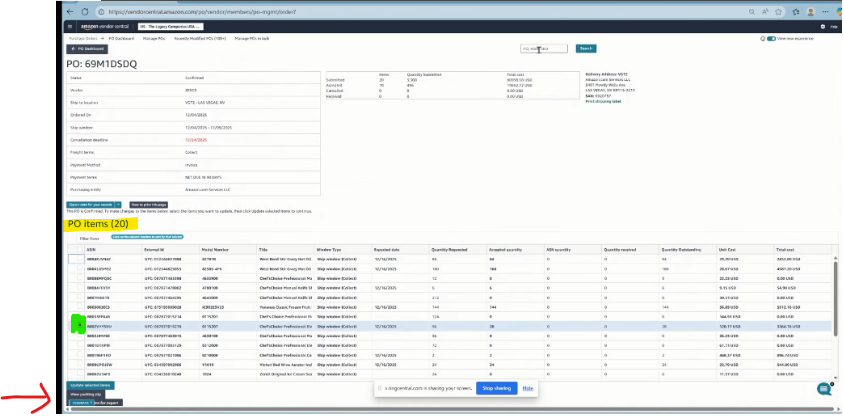
Step 8: (Continued) PO Line/Lines Populate:
Option 1: Scroll down until you locate your product line you are modifying (Cancelling)
- Click the little box (at left/ green highlight) on product SKU line you are changing line
- Click :" Update Selected" (Bottom left w/red arrow)
Option 2: You can search by CTL "F" (Find)
-"Find" Box populates : --> Enter Product SKU (see top right yellow highlight)
-In PO Items Section --> Your Product SKU will now be highlighted
- Click the little box (at left/ green highlight) on product SKU line you are changing line
- Click :" Update Selected" (Bottom left w/red arrow)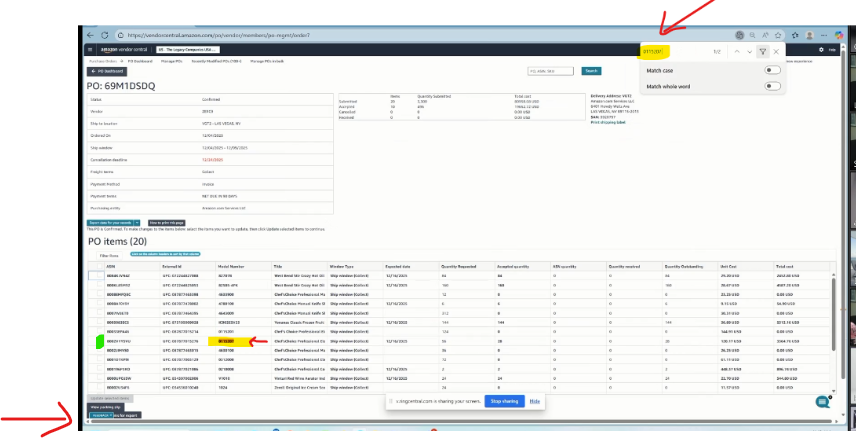
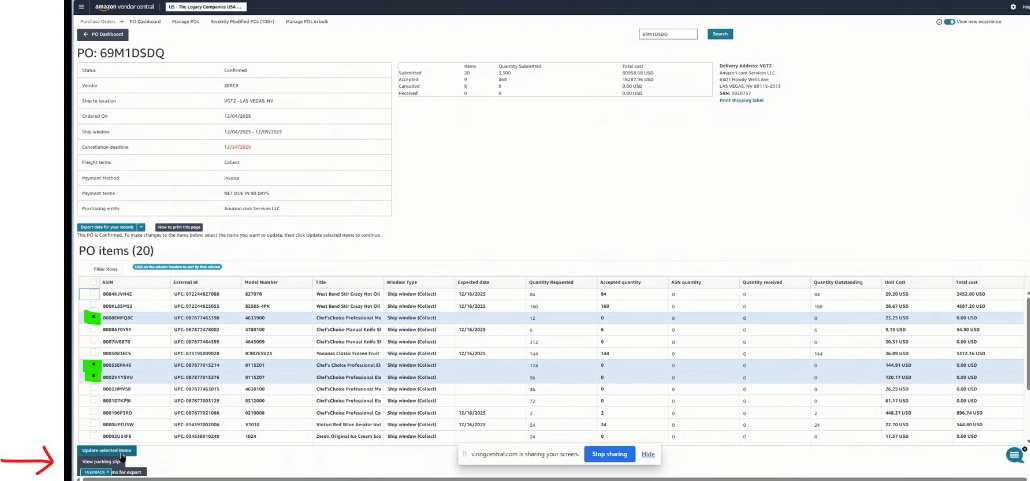
Step 8: PO Line/Lines Populate ( Modifying/Canceling multiple product lines)
-Scroll down until you locate your product lines you are modifying (Cancelling)
- Click the little box (at left/ green highlight) on each of the product SKU line you are changing line
- Click :" Update Selected" (Bottom left w/red arrow)
Step 9-A) : Screen Populates (PO you are modifying a single product line)
-Under the "Expected Quantity" Column -> Enter the Quantity noted in Excel file.
-Click :Submit
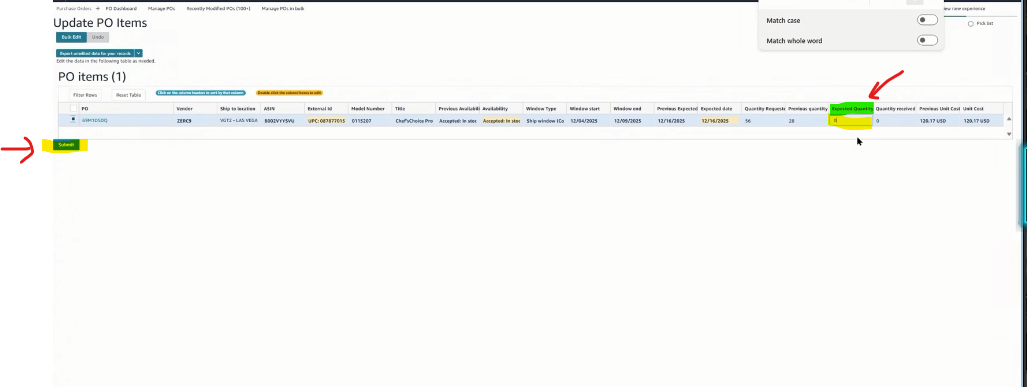
Step 9 B) : PO Line/Lines Populate ( PO you are modifying/cancelling multiple product lines)
-Under the "Expected Quantity" Column -> Enter the Quantity noted in Excel file per product line
-Once you have modified all "Expected Quantity" product lines you need to modify
-Click: Submit

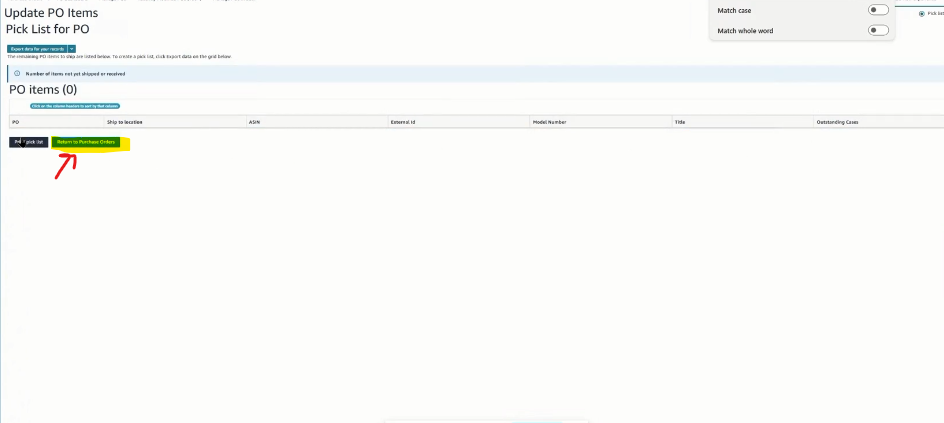
Step 10: Screen Populates:
-Click : Return to Purchase Orders
Step 11: Screen Populates
-Enter your Next PO Number and repeat the steps.
Dale Orders:
- Use Rebecca's Log In info
Donalyn's Orders:
- Use Rebecca's Log In info 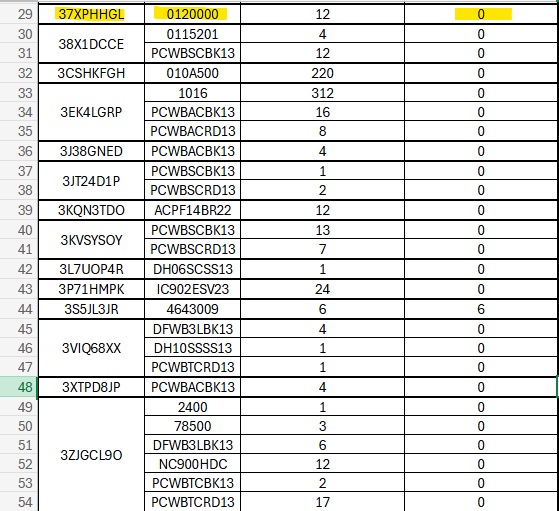
Glaiza's Orders:
- Use Rebecca's Log In info
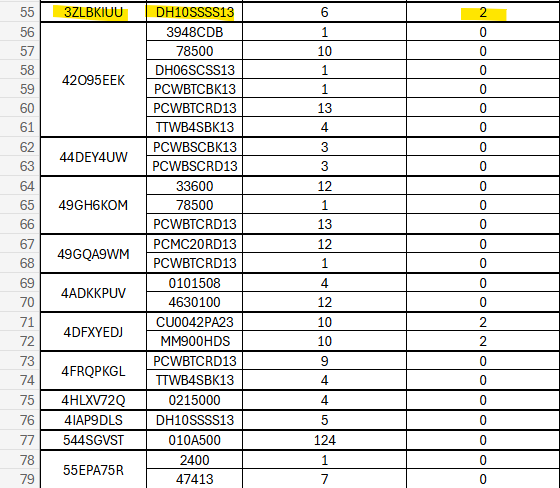
Shanna's Orders:
- Use Amanda's Log In info
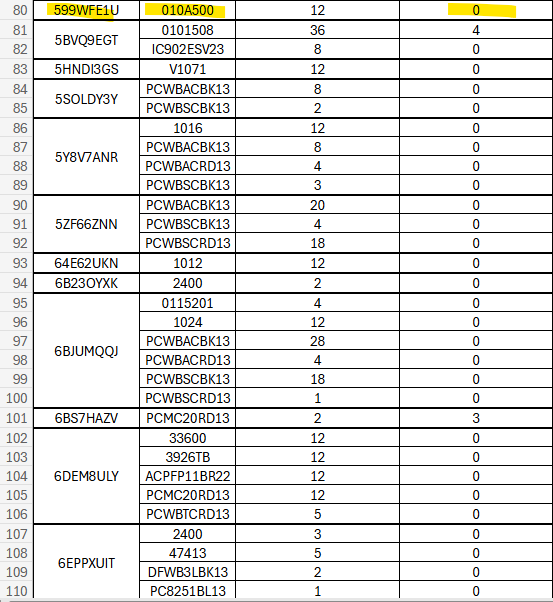

Vince's Orders:
- Use Amanda's Log In info 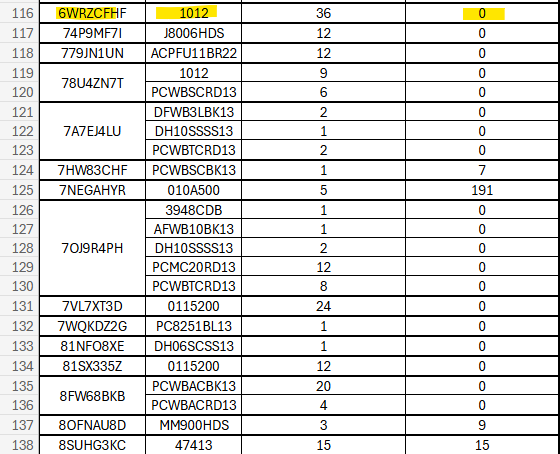
Secondary Cancellation Round:
Reminder: You will be entering the "Sum of Received quantity" 
Dale Orders:
- Use Rebecca's Log In info
Donalyn's Orders:
- Use Rebecca's Log In info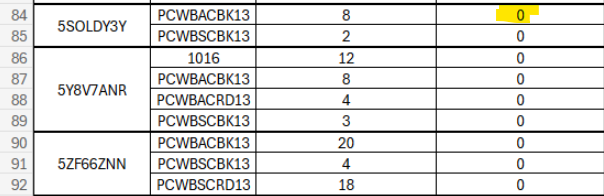
Glaiza's Orders:
- Use Rebecca's Log In info 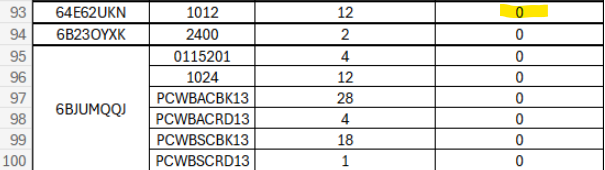
Vince's Orders:
- Use Amanda's Log In info