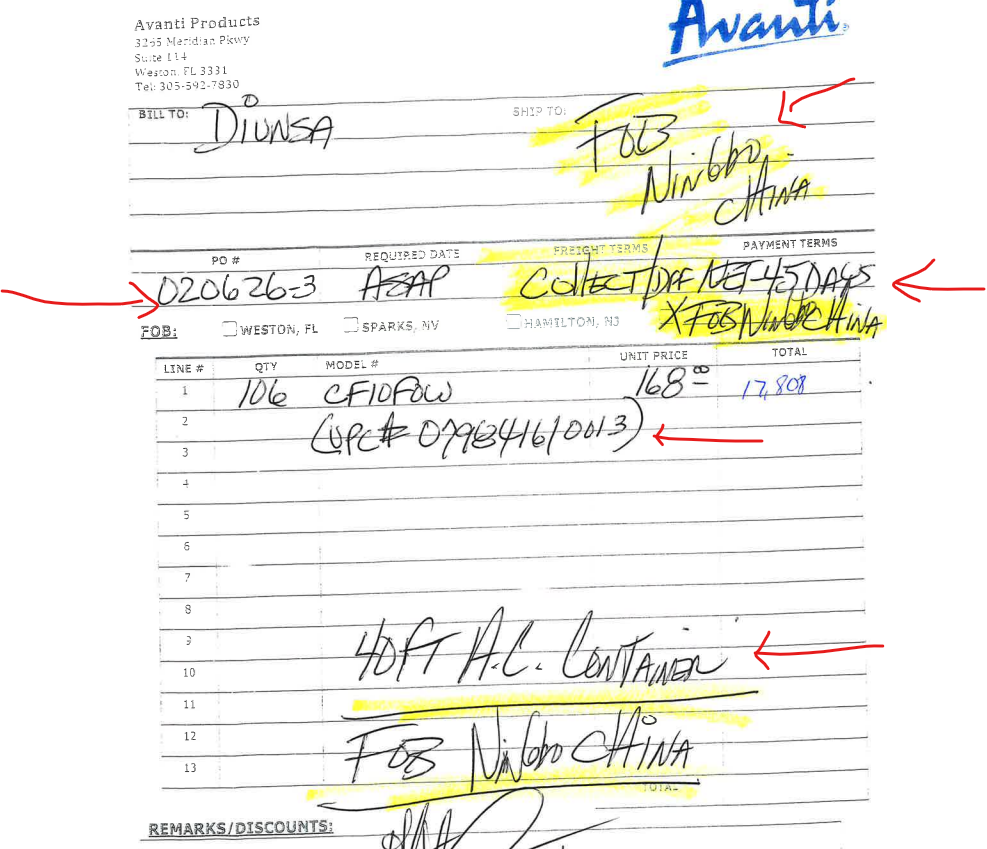
2/12/2025: The date OP360 received our first PO to process.
-Spoke with Mario on 2/12/2026 and he said he had reached out to Carla and he advised for Carla and I to have a meeting the next business day - 2/13/2026 to go over the order processing procedure
-This account needs to be processed in a very specific way
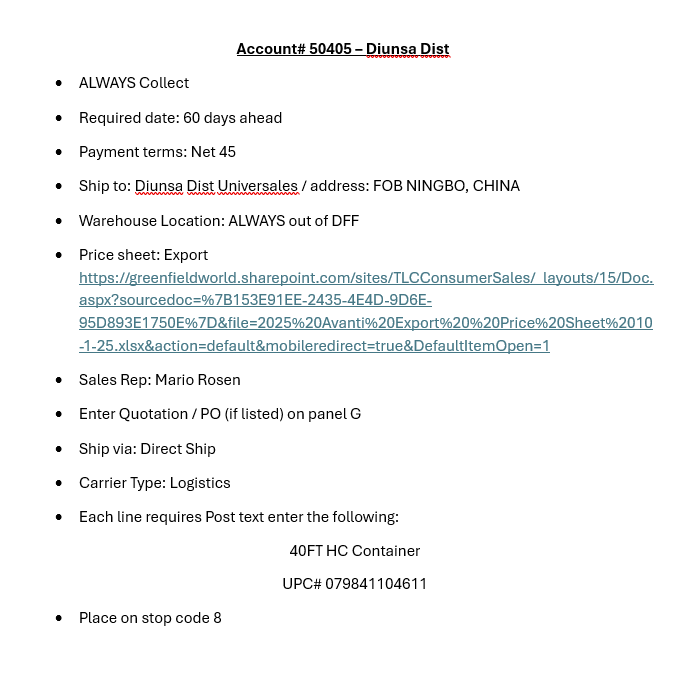
Price Sheet Below:
| DIUNSA | Customer ID: 50405 | |
| Warehouse | DFF | |
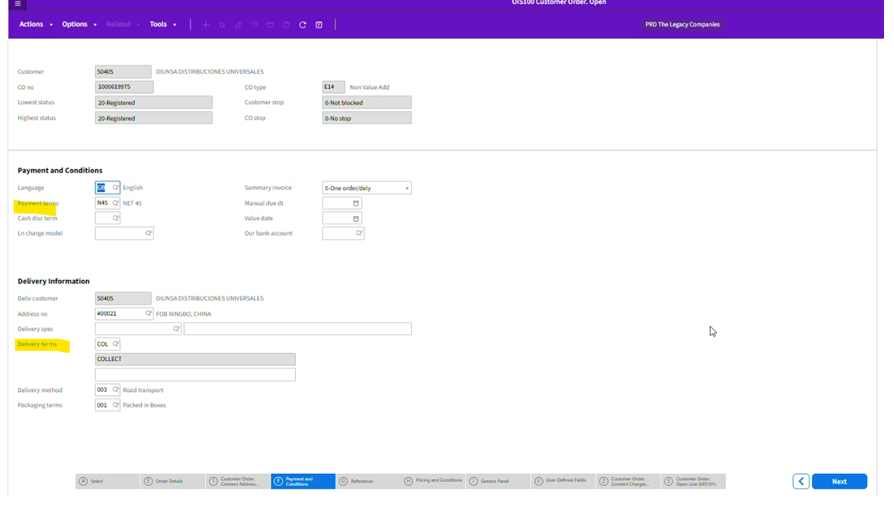
| Payment Terms | Net 45 | |
| Delivery Terms | Collect | |
| Ship Via | Select Direct Ship | |
| Carrier Type | Select Logistics | |
| Ship Date | Select a date 60 days / Or if indicated on PO or Body of email | |
| PO Field | Enter PO Number | If PO includes a Quotation Enter in the PO field
|
| Ship To Address Field | ||
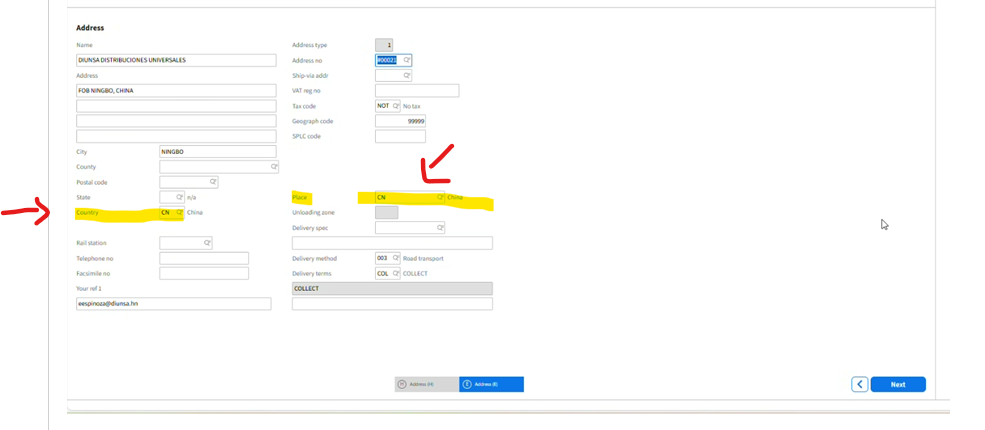
| Country | Select CN (China) | |
| Place | Select CN (China) | |
| Discount Screen -Charge Field 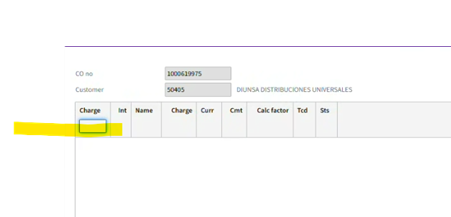 | If Mario has not indicated a discount percentage on PO Leave Blank | If Mario indicates a discount percentage on PO We need to select the percentage indicated on the PO |
Once you have processed the Sales Order
 | You will need to change the order lines expected ship date in the panel K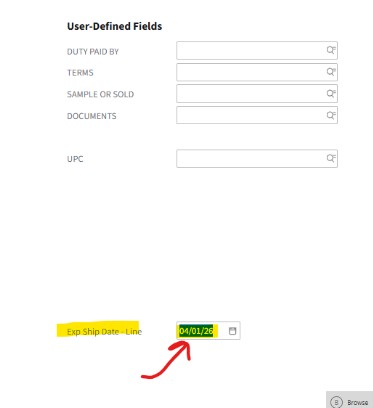 |
If Lisa or Mario come back with a Ship Date in the conversation at any point
|
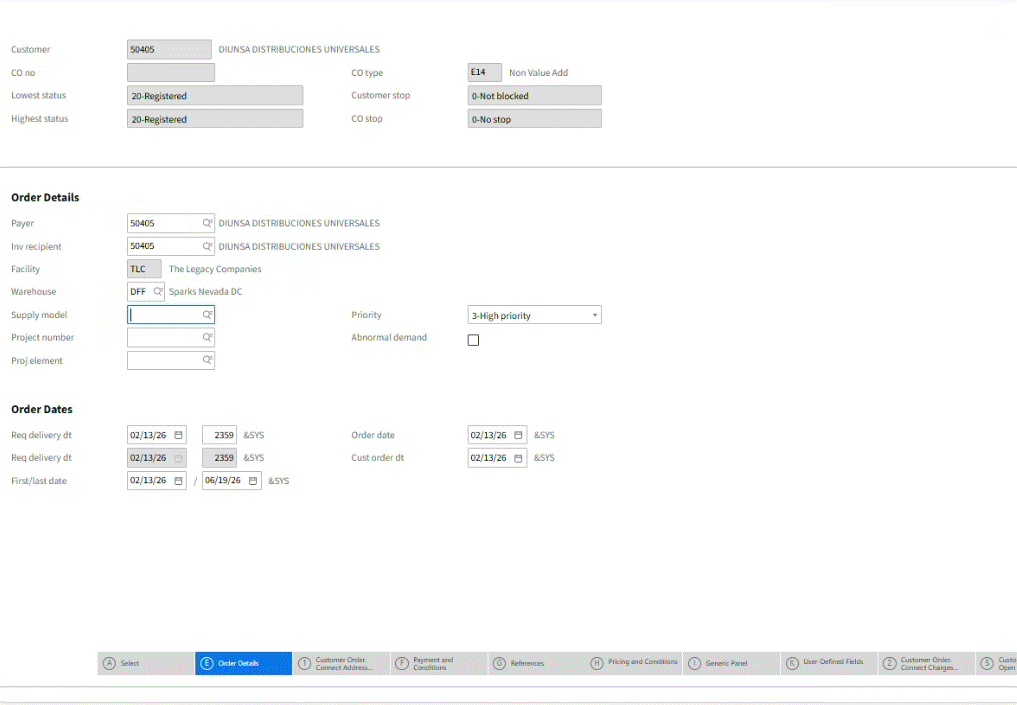
PROCESS PO in OIS300
-Customer ID: 50405
Order Type: E14
Selected ship date for this PO: 4/17/2026
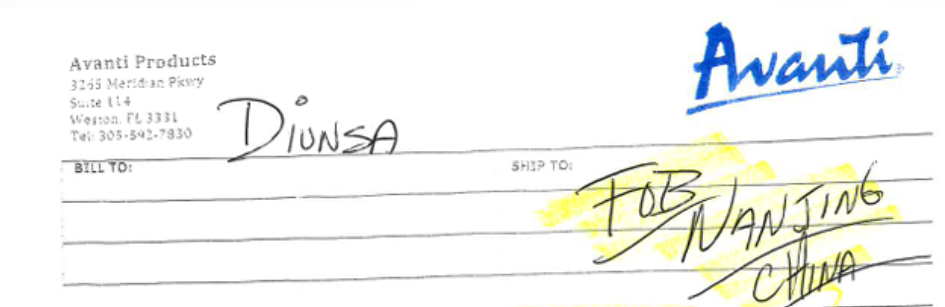
Ship To Address
-Enter what is shown on PO
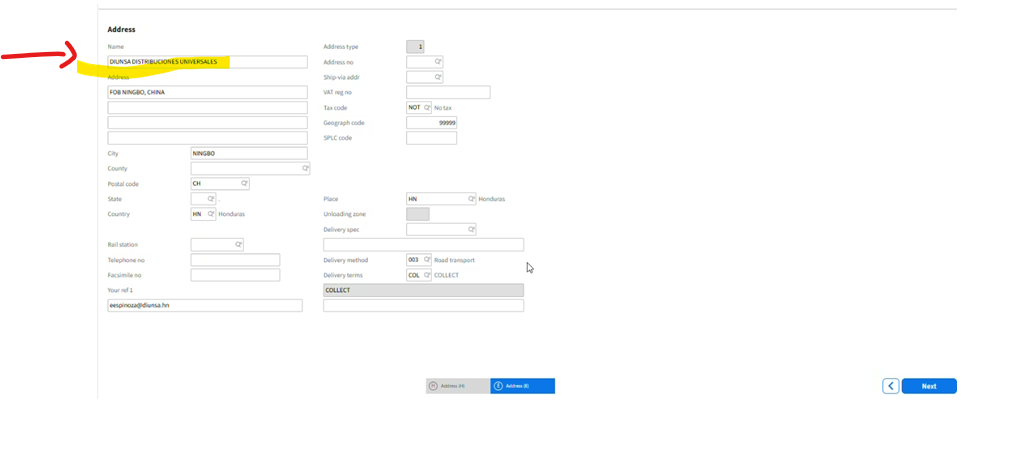
The Country and Place both need to reflect (CN) China
-Select : CN (For both fields)
-Click : Next
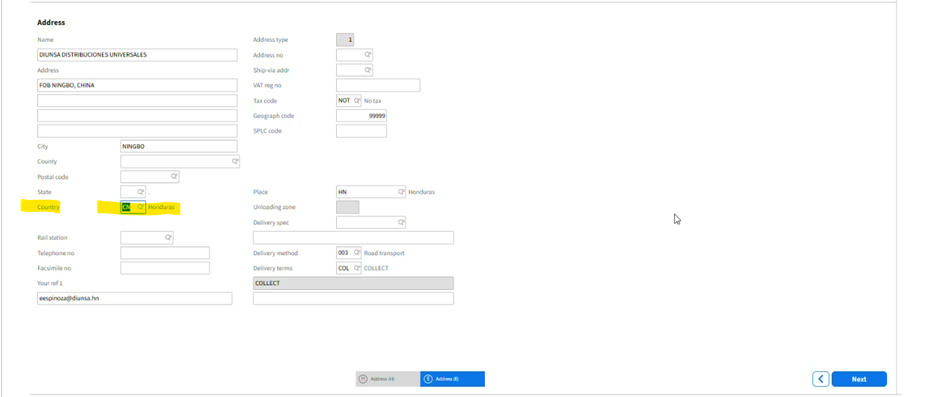
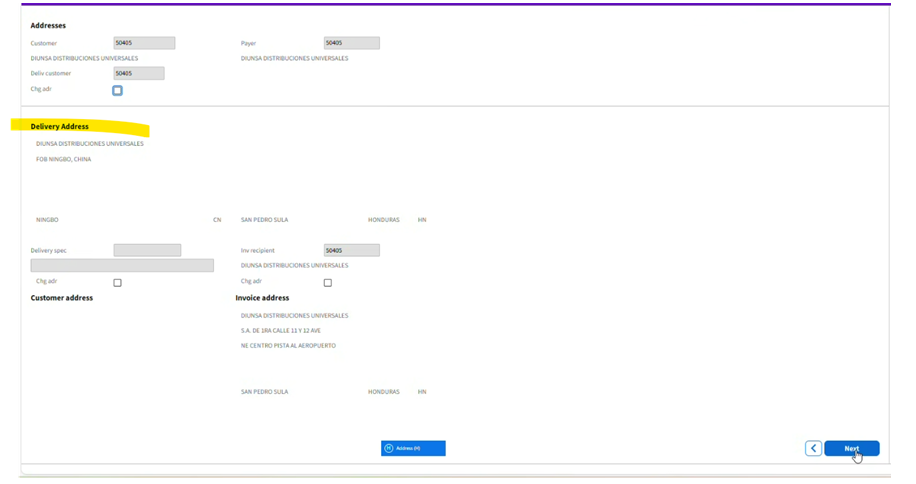
Screen Populates:
-Double check the "Ship To" Address Name
Payment terms: Net 45
Delivery terms : Collect
Enter the PO number
-If a quotation also and in po field 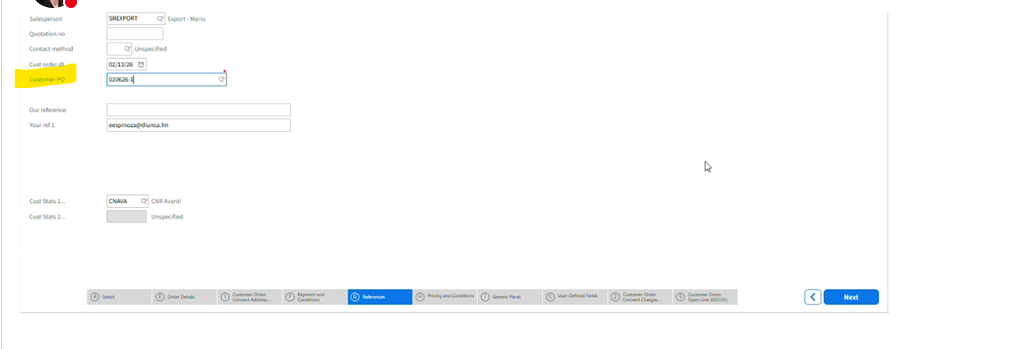
The Next for next 2 screens - Click : Next
Screen Populates
-Ship Via: Select Direct Ship
-Carrier: Logistics
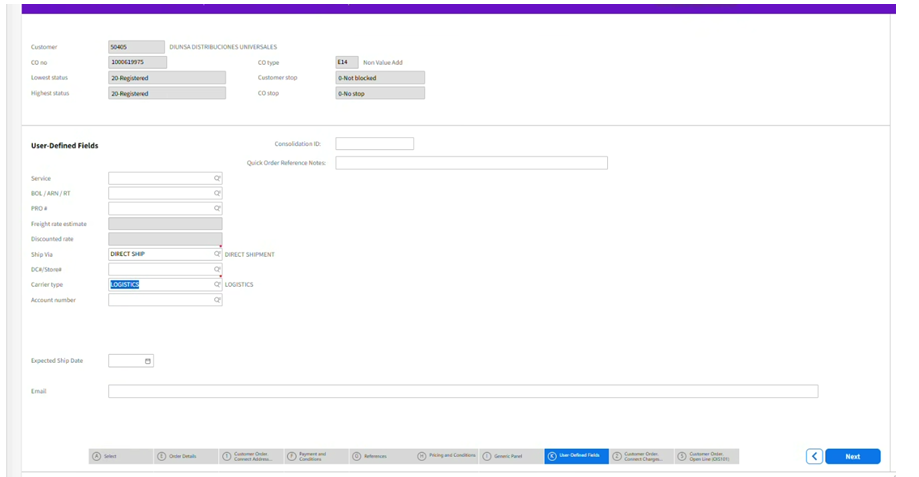
Screen populates
-Charge Field: If Mario has not indicated a charge -> Leave Blank
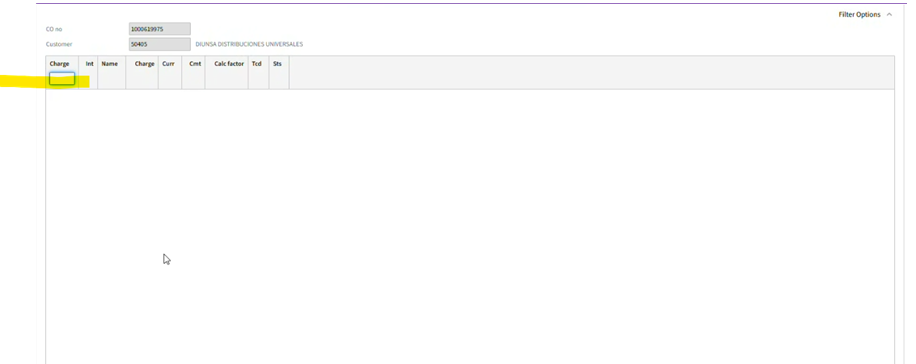
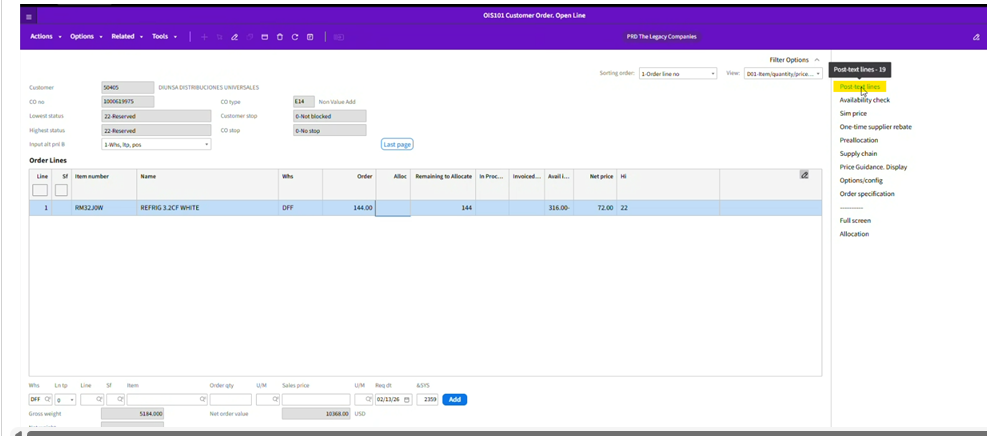
Start to enter your order line
Once entered -> Click Right Side Tool bar option: Post Text Notes
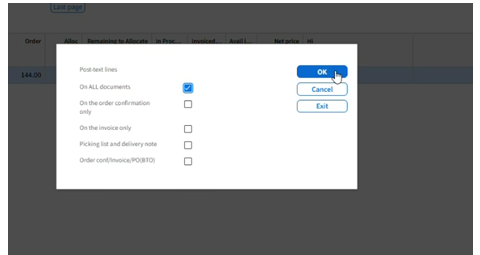
Pop Up Box populates
-Select: On ALL Documents
-Click OK
Pop Up Box Populates
-Enter in the Post Text Notes Box the following:
- 40FT HC Container
-Enter: UPC# XYZ (The Number indicated on the PO)
-Click Next
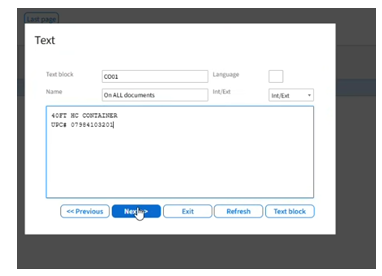
Once you have completed the order lines and Post text notes
-Refresh your screen
-Make sure warehouse reflects DFF
-Note: Allocated will always reflect a negative amount (Status 22) -> Please Do Not advise the product is back ordered 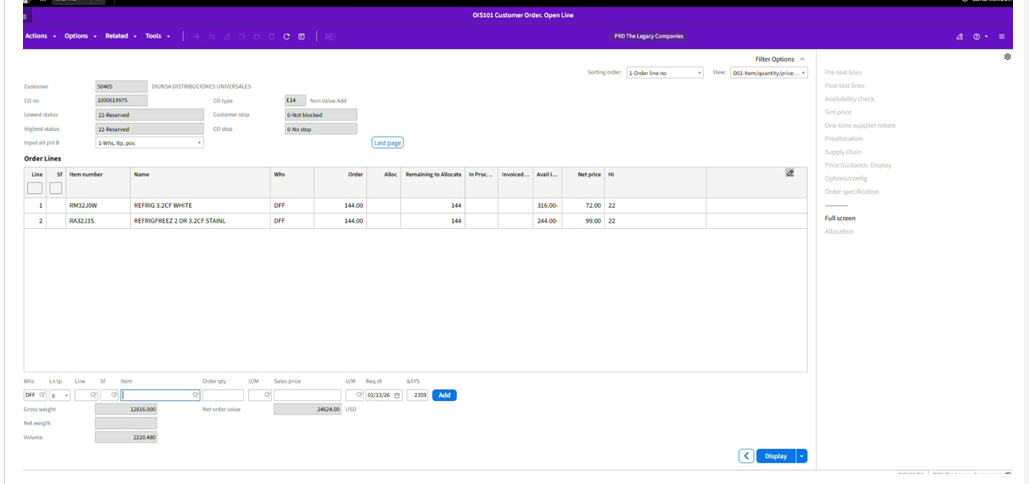
Save to a PDF a copy of the Sales Order
Attach to the M3 Order
-Copy of the PO
-Copy of the Sales Order Copnfirmation
- Copy of the Ticket thread (excluding internal notes)
If we receive a PO Revision -> Repeat the process
-Copy of the PO
-Copy of the Sales Order Copnfirmation
- Copy of the Ticket thread (excluding internal notes)
Example 1:
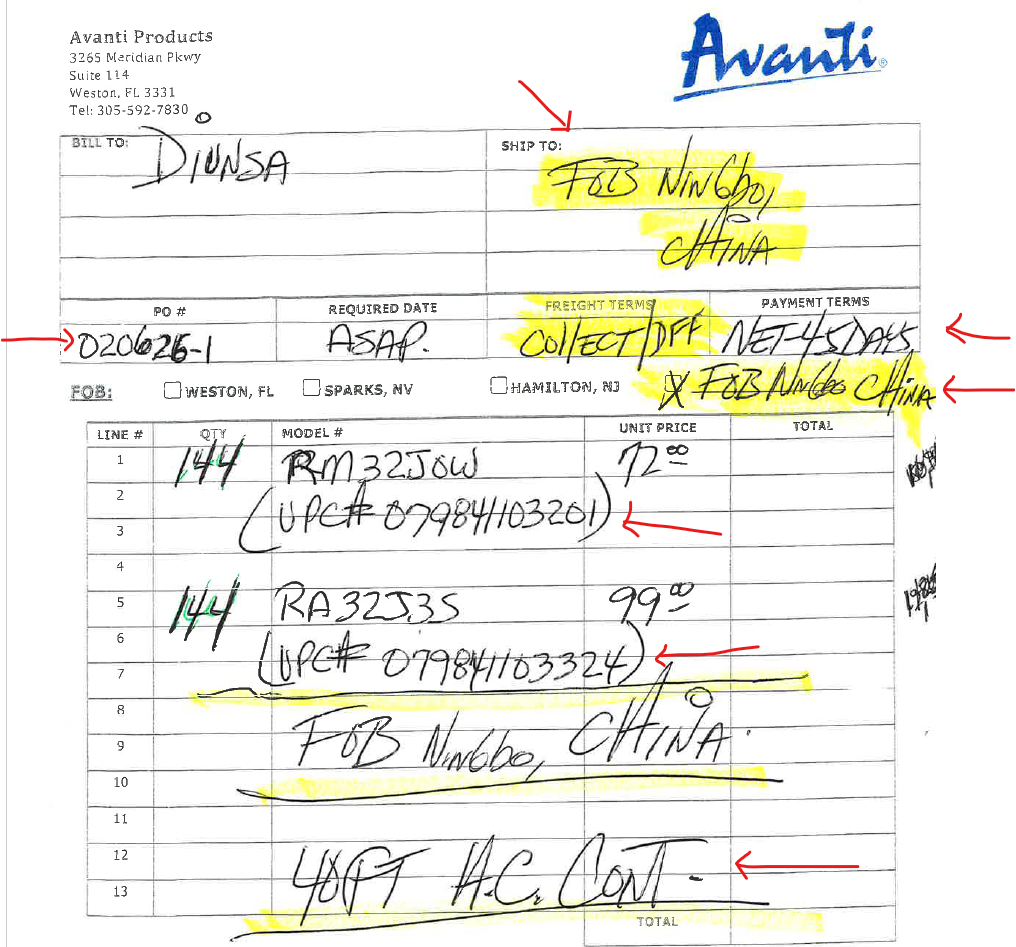
Example #2: