
Update 1/28/2026: Inbound RYMAXX PO's
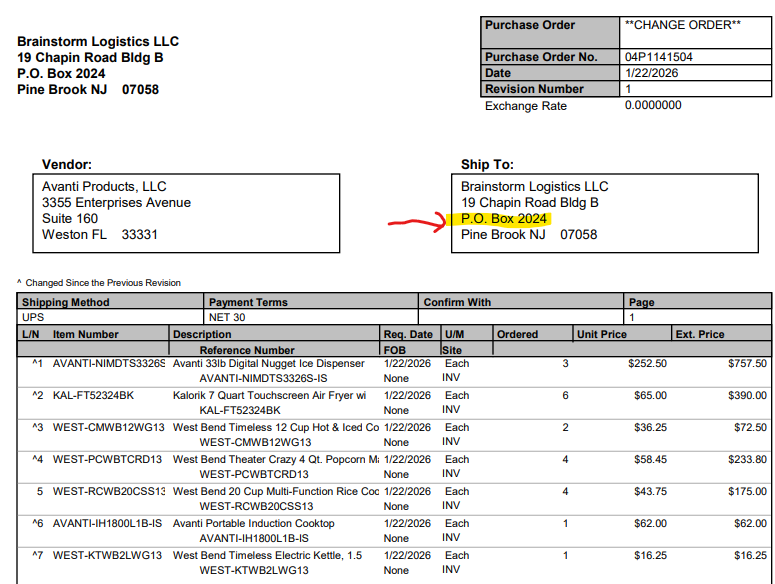
If the PO address reflects as the below
- Remove address line 2: P.O. Box 2024
| Question | Answer | Comments |
| Do I need to attach a copy of the PO & Sales Order Acknowledgement to the M3 Order | Yes | If order needs revised - Be sure to attach the revised copy of the sales order |
What to do if:
| Line must reflect status 99
Close Choose the reason code | |
What to do if:
| Line must reflect status 99 Cancel product line Related Close Choose the reason code | |
| Pricing (Amanda advised -Customer gets special pricing) | Enter the price per item as shown on PO | |
| PO's with multiple products -If a product is out of stock | ||
| Accounting Point of contact | Monica Fernandez mfernandez@thelegacycompanies.com Martha Arroyo marroyo@thelegacycompanies.com | CC: Amanda McDowell amcdowell@thelegacycompanies.com Lisa Long lisa@omegajuicers.com |
| Rymax" | Customer ID: 50563 | Comment |
| Warehouse | Select : First: HNJ ChoicePKY or HNJ | View the shipping address 1. if product is available in warehouse closest to the ship to address- choose this warehouse 2. If stock is only available in other warehouse - then choose that warehouse 3. If you do not have enough stock to ship from 1 warehouse and need to ship from both PKY &HNJ. -Enter a product line and select the correct warehouse for that product line Order processing: In the main warehouse field : Select warehouse majority product is shipping from |
| If the PO Ship To Address reflects both: A Physical street Address on address line 1 And a PO Box on address line 2-> remove the PO box from address line 2 | ||
| Payment Terms | PPD (Prepaid) | Unless otherwise indicated on the PO |
| Ship Via | Logistics | |
| Carrier | Logistics | |
| Stop Code | Update 1/28/2026: -Stop Code 7 Once Approved: Modify | 1/28/2026:
Once Approved:
|
| If a product is out of stock | Enter on the order and select HNJ warehouse |
Step 1: Review all details inside body of ticket and attached PO.
Step 2: Check stock in M3
Step 3: Process Order
Step 4: Upon checking OIS300 : Order reflects stop code 3 (Credit Hold)
-Keep order in Stop Code 3
4-A: Send email to accounting to advise.
Subject Line : Customer ID, Customer Name, PO #, M3 Order #
-Body of email include the same information, advise order is a stop code 3 credit hold
-Attach a copy of the Sales Order
- Ask to please advise
-Update Side Cart
-Update Internal Notes
Ticket Status : Pending
***Accounting will advise payment status
Step 4: Upon checking OIS300: Order is a Stop Code (Blank/No Stop Code)
- Place Order in Stop Code 7
-Attach to M3 Order: Copy of Sales Order Acknowledgement & Copy of PO
-Reach out for approval to release order to warehouse
***Once approval to modify order to :NO Stop Code (Blank)
Step 5: Update Order Stop Code
- Respond to ticket providing the appropriate M3 Order confirmation canned response.
Note: If product is back ordered : Select the correct canned response advising product is back ordered.
- Update Side Cart
-Enter Internal Notes
-Ticket status WOTP (Reach out to Lisa for final confirmation if can closed ticket)