| PO's (Orders) Overview: You will only be handling Walmart Canada Orders |
| Customer (Account) ID: | 70126 (Edgecraft) |
| Customer (Account) ID: | 70127 (Omega) |
| 3 PO's per account come in once a week. | Almost always on a Monday |
| Orders come into SPS Commerce on Saturday's | So in theory should show in OIS300 on Monday Morning |
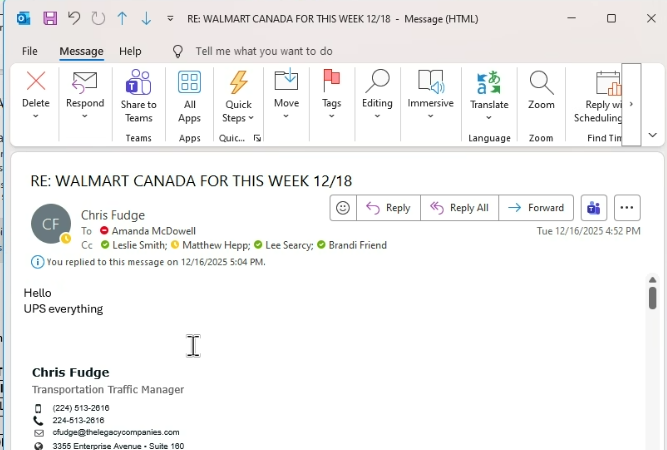
| Orders Must be Processed and handled the same day - First thing Monday morning. -Mandatory must be looked into before 12:00 Noon. | The Reason: If in the event you need logistics information |
| Place order in Stop code 7 Real Time , with no delay, until you receive confirmation from Chris Fudge | * |
| Upon receiving confirmation from Chris Fudge modify order to stop code 8 | * |
| Orders Must Ship by Thursday of the same week | * |
| Note: If orders are not in OIS300 | 1. Double check SPS commerce to locate PO's. 2. Recheck OIS300 at Noon (If still not in OIS300) -Will need to reach out to the EDI Team , Josh Rhody, CC Adam , provide the PO/PO's & advise orders are not showing in OIS300. |
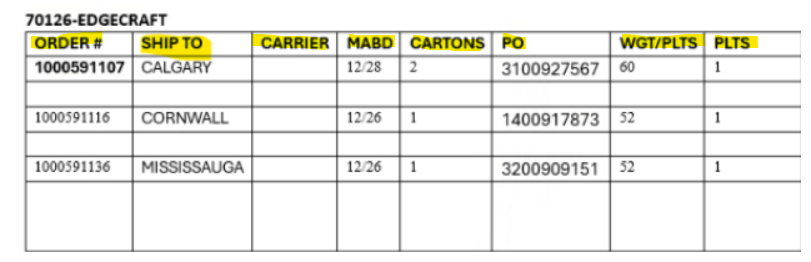
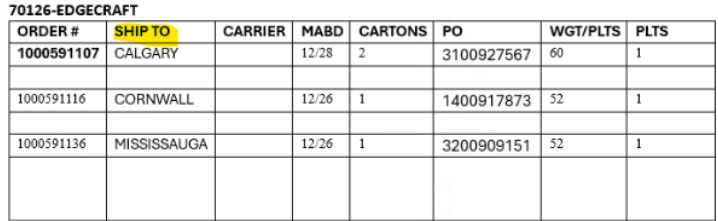
| You will need to create a Excel File Table with the PO/Orders details and email the warehouse and all involved | Please see example of the following in body of this article: 1. Excel File Format 2.Email to warehouse advising of orders for shipping |
| Note: Walmart normally does not except back orders | If product is back ordered Send Walmart contact person an email follow -up and advise how to proceed. Reminder: You will need to adjust your weight, ETC because of the back order item/items |
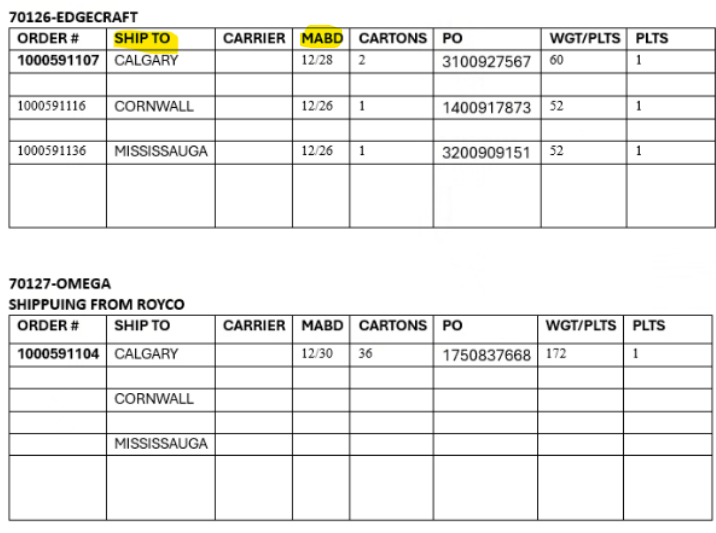
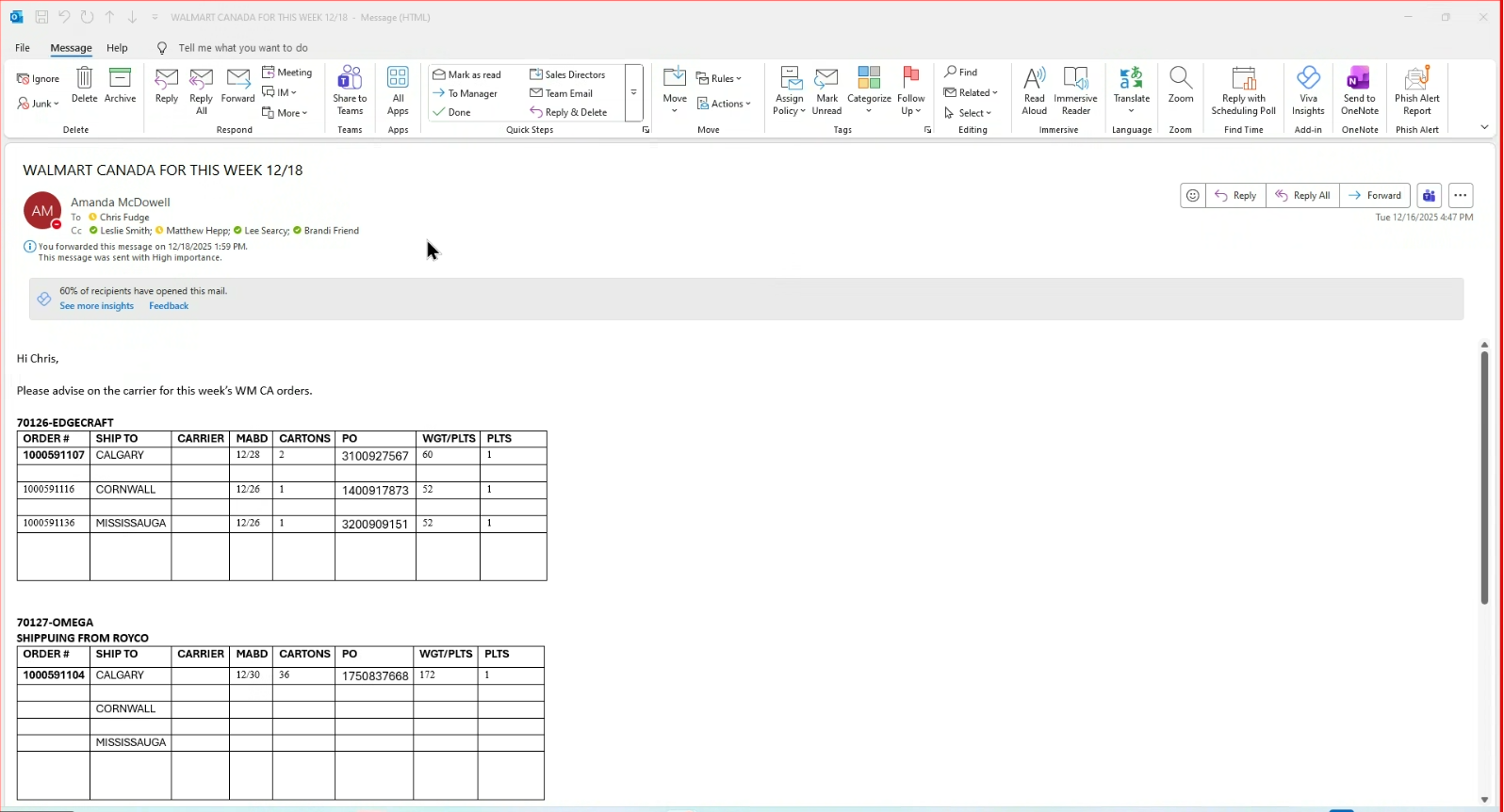
Please follow the same format as shown below:
Column Breakdown:
1. Order # : M3 Order Number
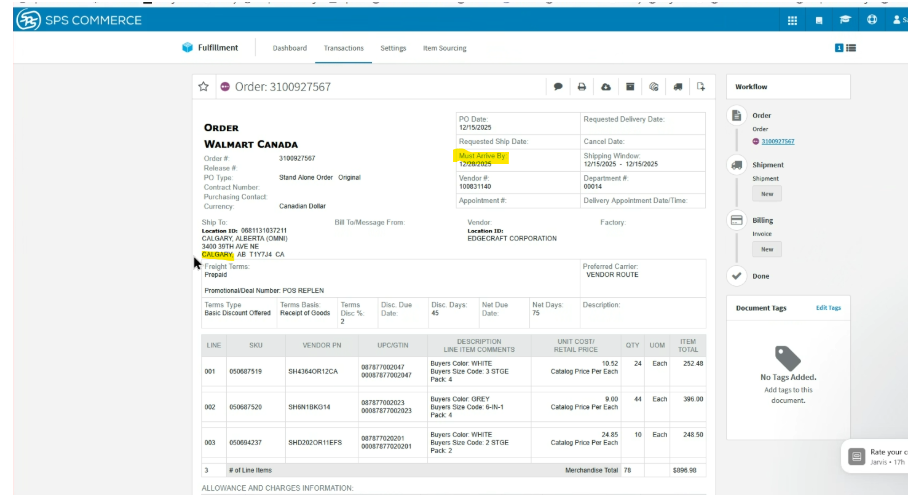
2. Ship To: City in the Ship To address (You will pull this info from PO in SPS)
3. Carrier: Chris Fudge will advise
4. MABD (Must Arrive By Date) - (You will pull this info from PO in SPS)
5. Cartons : Amount of cartons
6. PO : PO Number
7. WGT/PLTS: Enter the "Total weight with the pallet." ( If shows 0.05 or up -> Round up to the nearest weight)
8. PLTS : Is the "Total pallets" -( If reflects 0.05 or up --> You will need to round up to the nearest pallet)
How To Steps:
Step 1:
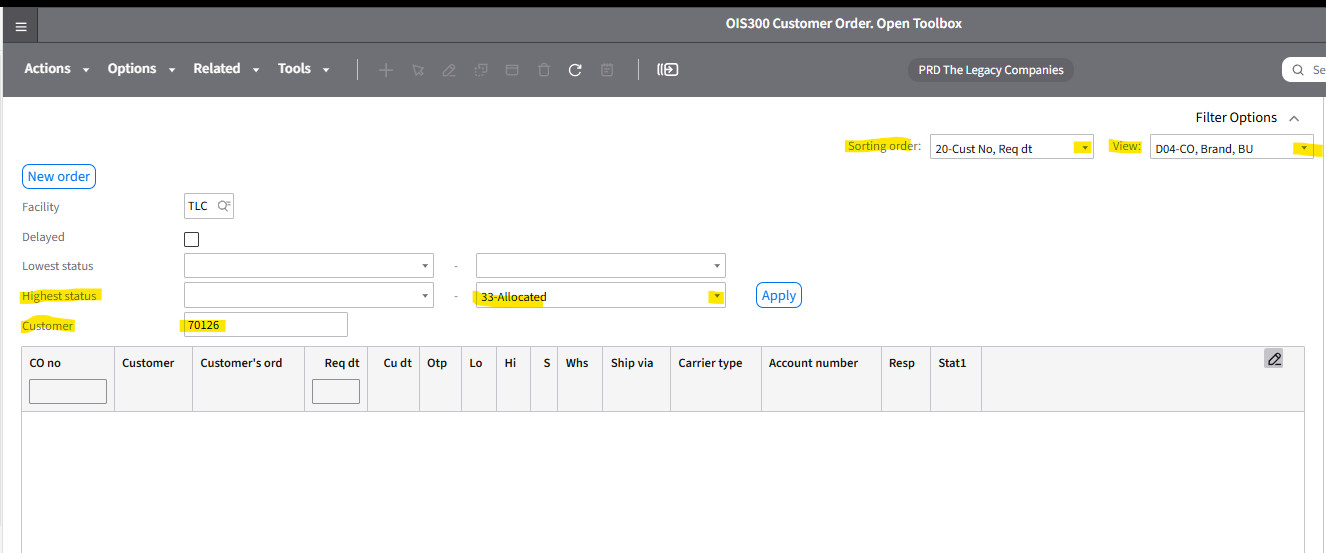
-Go into OIS300
-Set Sorting Order as: 20- Cust No, Req dt
- Set the View as: D04-CO,Brand,BU
Screen populates
-Customer Field: Enter the Customer Number
- Highest Status (Field to Right) : Using drop down -> Select "Allocated"
-Hit "Enter"
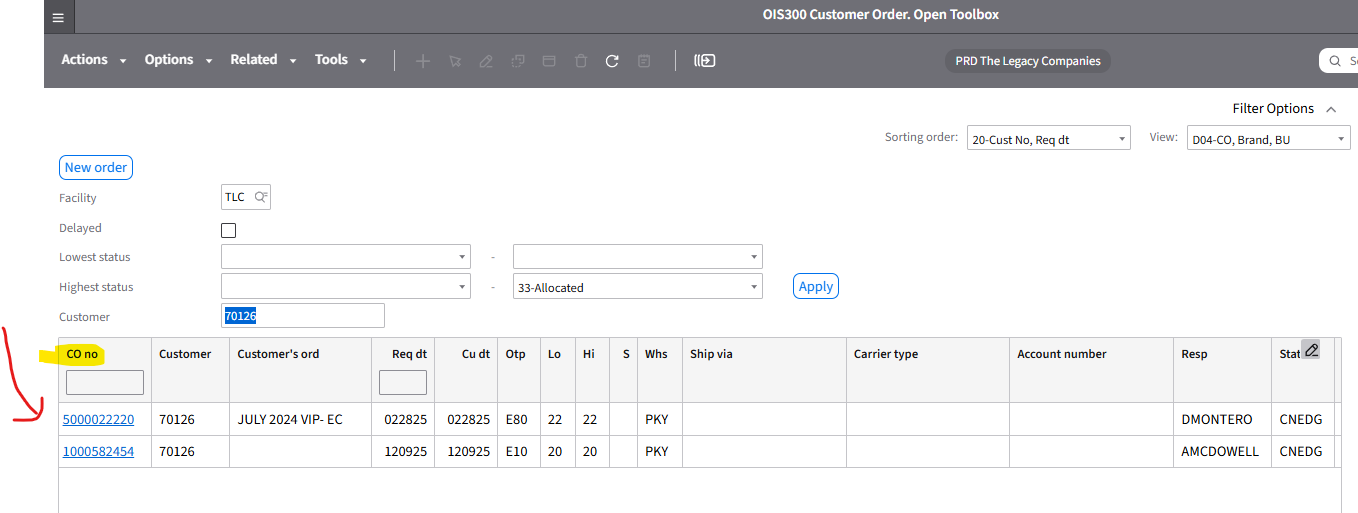
A) -If Orders imported into OIS300 , they will now show
Note: Amanda advised you are checking OIS300 to be sure the orders are indeed in OIS300
-Place orders in Stop Code 7
B)-If Orders Do Not show in OIS300:
1. You will need to search for the orders in SPS Commerce.
2. If there are orders in queue -> Recheck OIS300 at 12:00 Noon.
-If orders are still not in OIS300 -> Send email to EDI Team, Josh Rhody and CC Adam on email thread.
-Provide Customer Account Number/Numbers, PO # , and order details . And advise orders are not reflecting in OIS300.
Step 2: If orders are in OIS300
-Create your Excel File (As Shown Below) . Please be sure to create a separate file for each customer (Account) ID.
-Complete all columns (See Excel File information at beginning of article)
Note: If orders are not in OIS300 first thing in morning --> You can still create the Excel File/Files and add details as you receive them.

Step 3:
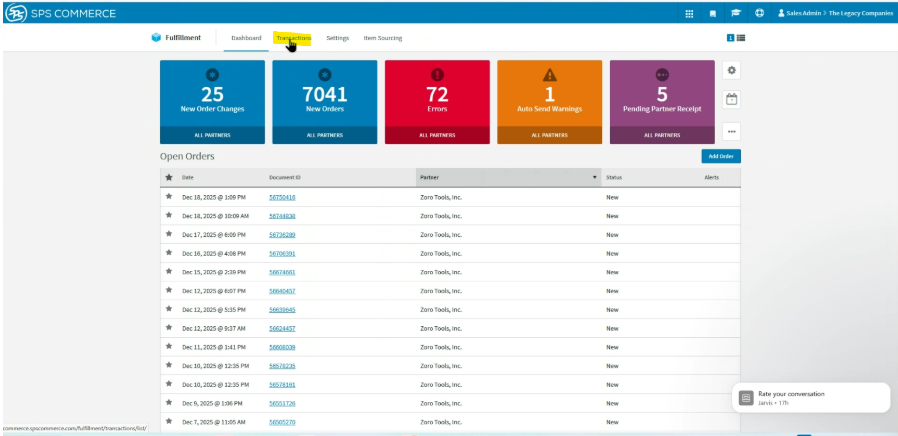
-Go to SPS Commerce
-Click Transactions
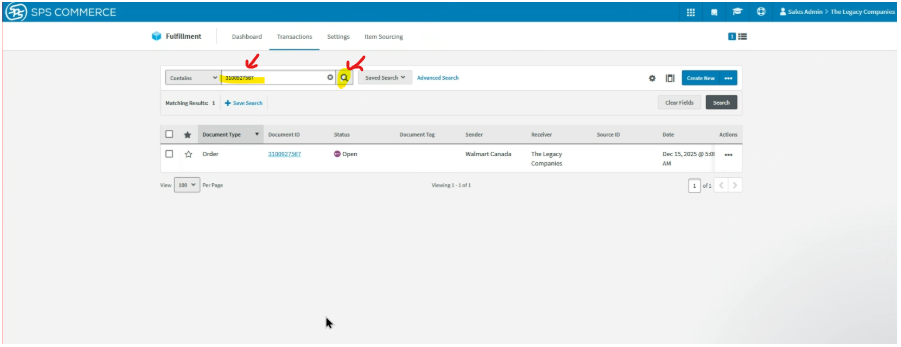
Step 4: (You will only be handling orders for Walmart Canada)
-Enter you first PO Number
-Click magnifying glass
-Order will now show
Step 5:
-Click on the PO number ( Document ID)
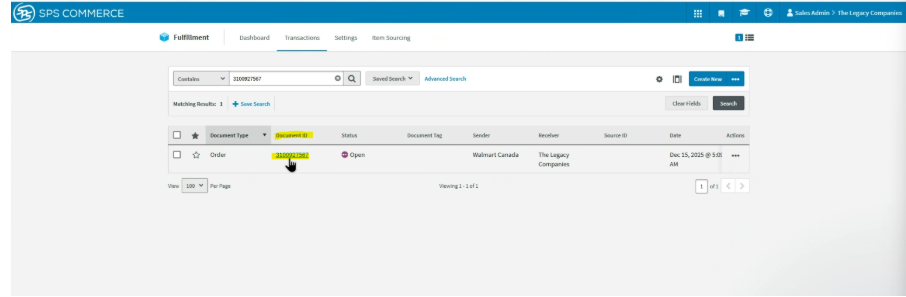
Screen populates (PO opens up)
Step 6:
-The "City" in the Ship To Address -> Enter in your Excel File Table
-The "Must Arrive By Date" -> Enter in your Excel File Table (MABD)
-Once you have completed the Excel File Table for all PO's
Step 7:
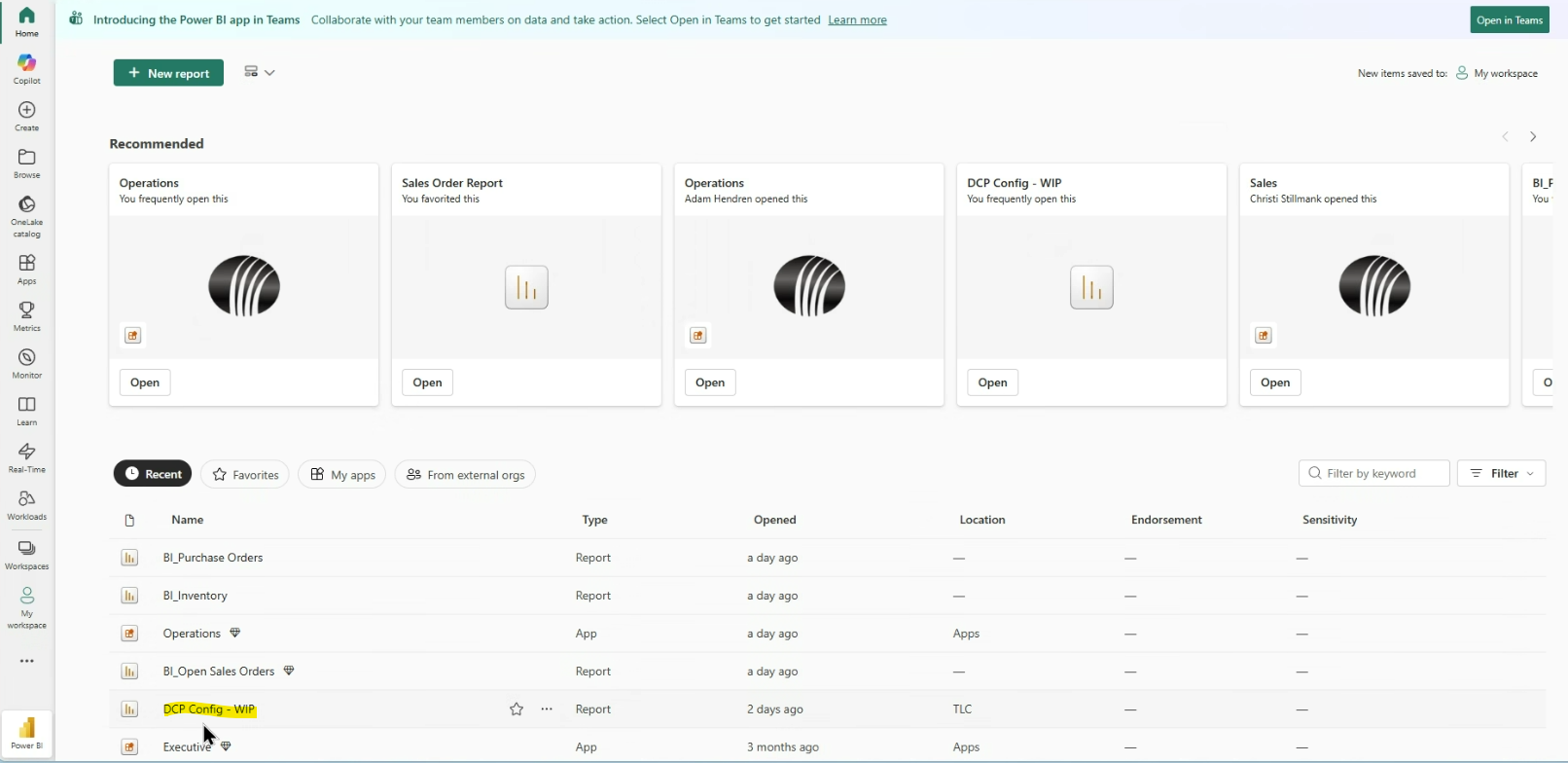
-GO to Power BI
-Click on : DCP Config- WIP
Screen Populates: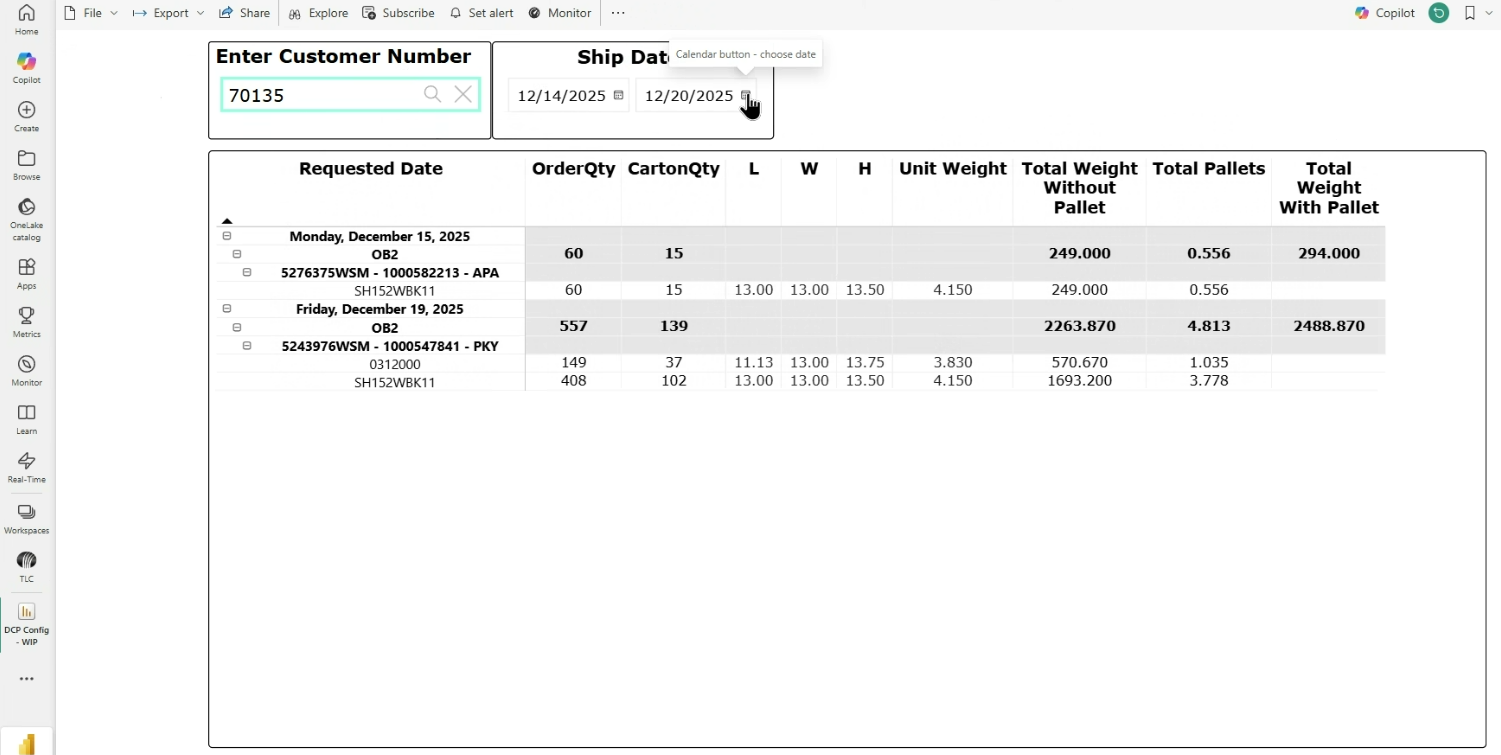
Step 8: For your selections : Work from "Right" to "Left"
1. Click "Ship Dates
-First click in the second field (Highlighted in Yellow) --> using calendar select the next business day
-Then click the first field (Highlighted in Green) --> using calendar select the previous Saturday
(Note: This is referring to the "Requested Ship Date" on PO
2. Next Step: Enter your Customer (Account) ID
3. Hit "Enter"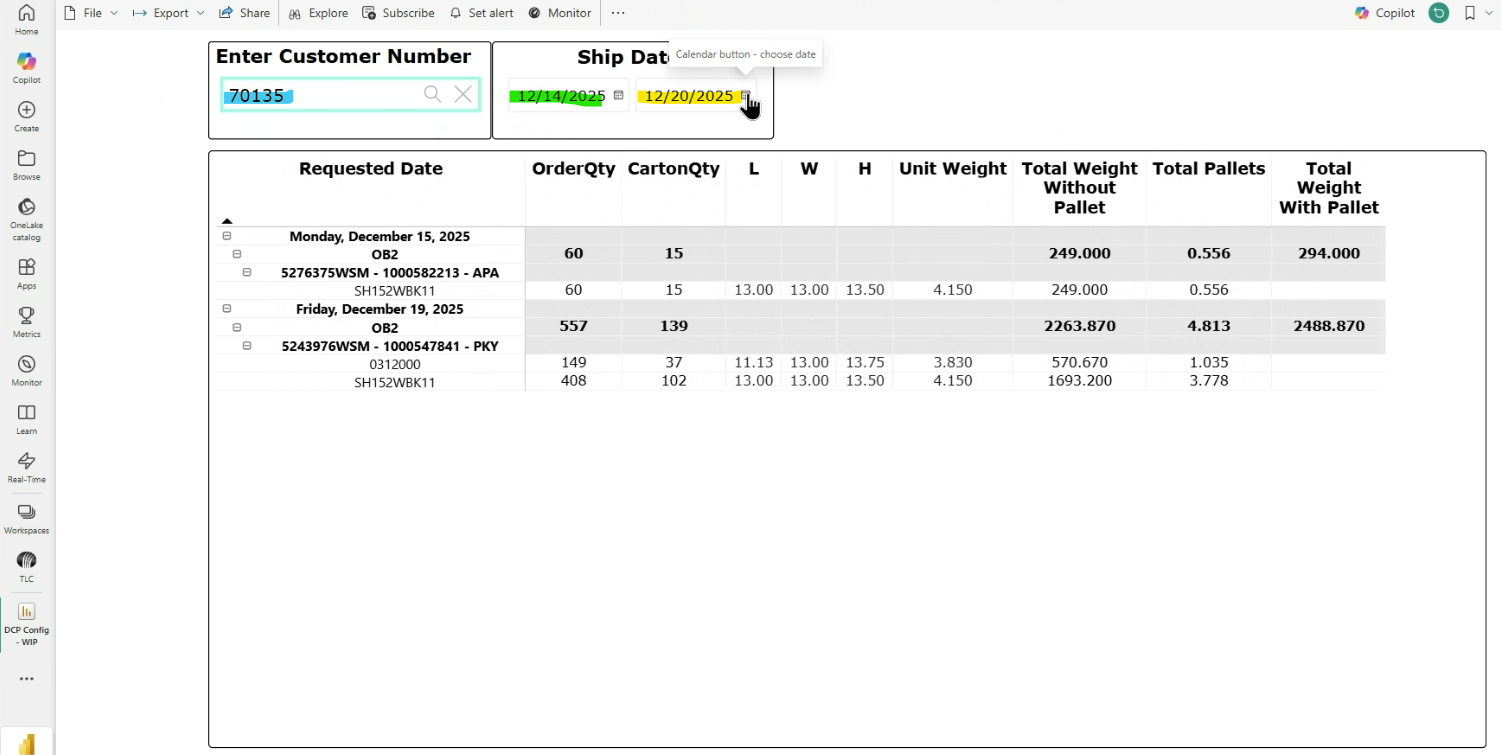
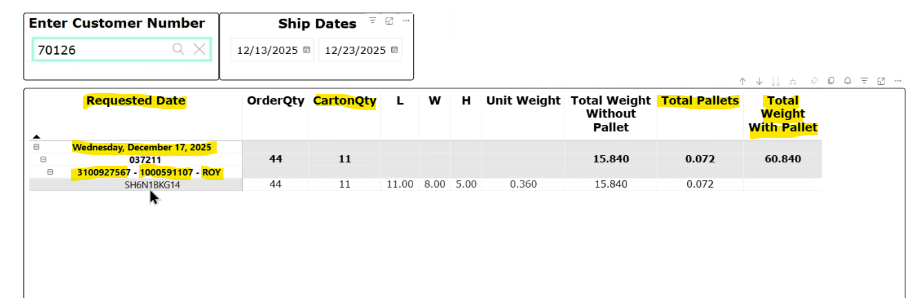
Screen Populates:
Step 9:
If you have an order/orders they will now show on this screen
1. PO number
2. M3 order number
3. Warehouse location
4. Ship Date
5. Carton Qty -> Enter on sheet as shown here
6. Total Pallets with Pallets (If 0.05 Round up to nearest pallet)
7. Total weight with Pallet (If 0.05 or higher , round up to nearest total weight)
Step 10: Once you have fully completed your Excel sheet
-Send an email to Chris Fudge and persons shown below by no later than Tuesday afternoon.
-Include the completed Excel File Table/Tables
Reminder: Make sure to place order/orders in stop code 7
Note: Chris fudge will advise: who the carrier is, and will advise if you need to modify order to different warehouse .
Step 11:
-Once Chris confirms -> If warehouse change , make the change and take stop code 7 off
Make all M3 order modifications:
-Update Stop code to : Stop code 8
- Update the carrier
- If Warehouse needs modified do so now
-Ship Date: Needs to always reflect : Thursday's date of the same week.