
Upon completion of processing the Sales Order - the following documents must be attached to the M3 Sales Order
A PDF copy of the PO
A PDF copy of the M3 Sales Order
A copy of the ticket conversation (excluding internal notes)
Note: If we are advised to revised a SO for any reason - (Repeat the Process)
A PDF copy of the Revised PO
A PDF copy of the Revised M3 Sales Order
A copy of the ticket conversation (excluding internal notes) with the revision
1. Customer PO must be saved to PDF
Format "MUST" reflect as follows: Customer (Retailer) Name (space) PO (space) XYZ (space) Date(period)Month(period)Year
Example: INTERCOUNTY PO N096681 12.11.2025
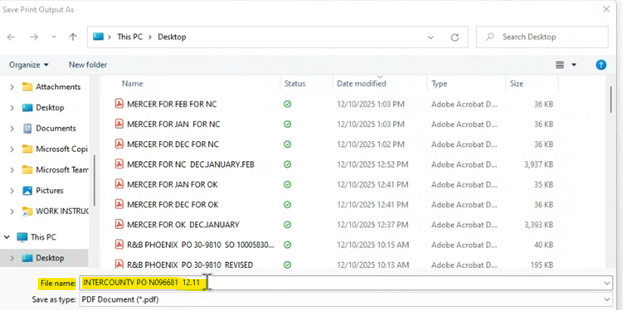
2. Upon completion of entering M3 Sales Order:
- Saved (& Renamed file) Customer PO PDF -> Must be attached to M3 Order
-Saved (& Renamed file) M3 Sales Order acknowledgement PDF -> Must be attached to M3 Order
How to Save Customer PO to PDF to attach to the M3 Order:
Level 1:
Step 1: "Save AS" PO PDF file
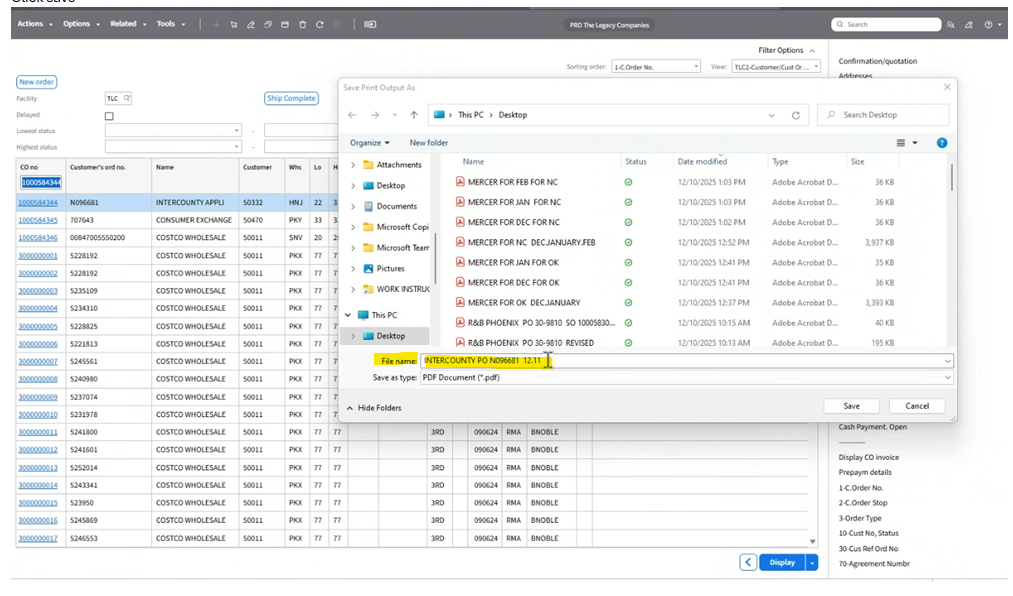
Step 2: OIS300 (Main Screen)
-Highlight Order Line
-Go To Widget (Top right side of screen)
Step 3: Scroll down to Related Information
- Click the Paper Clip Symbol
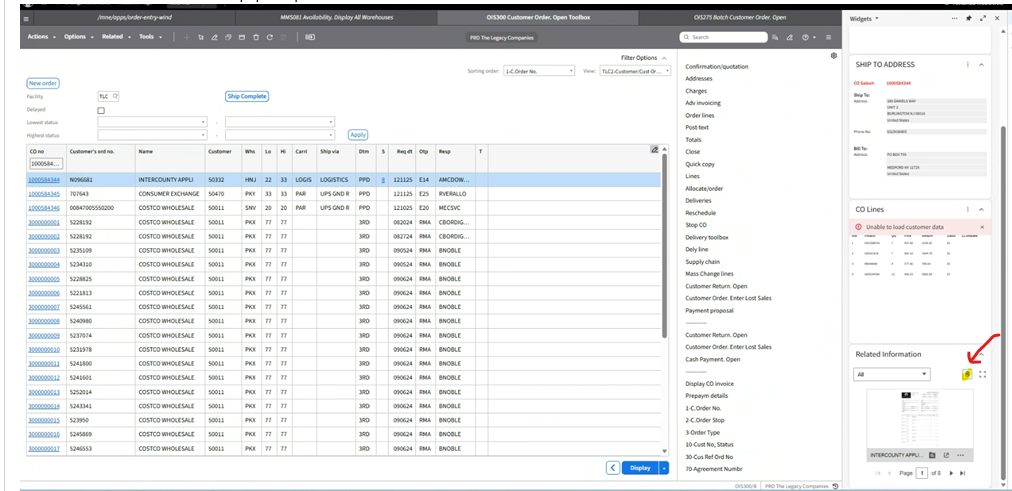
Pop- Up Box Populates:
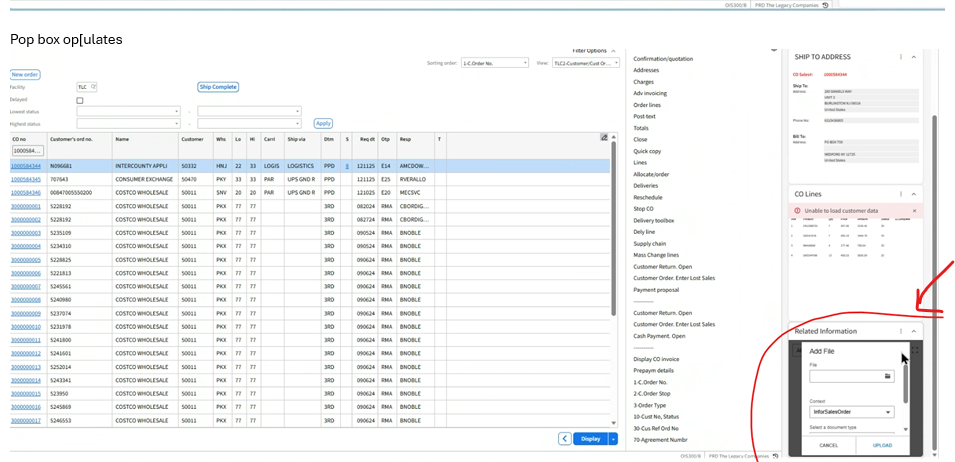
Step 4:
- Click the "Envelope" Symbol
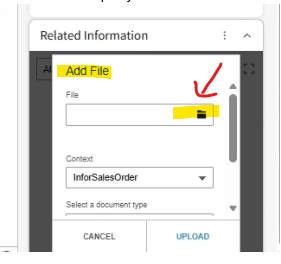
PDF Screen Populates
Step 5:
-Click (Highlight) Your PO PDF
-Click "Open"
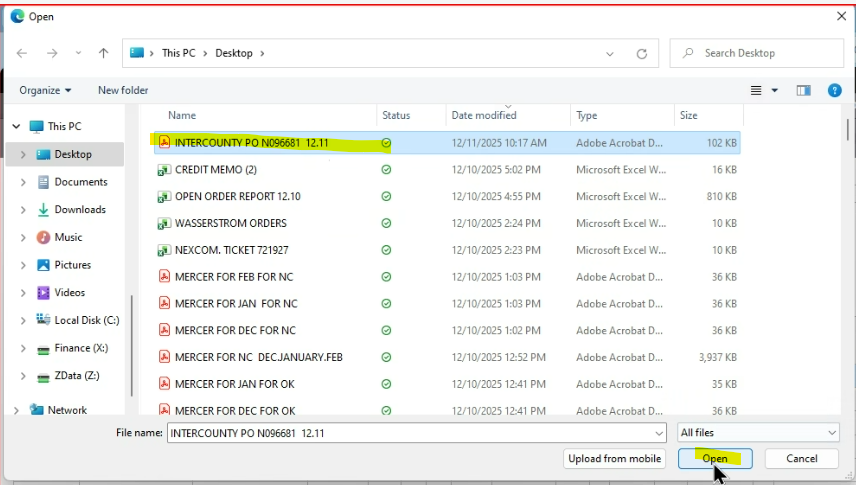
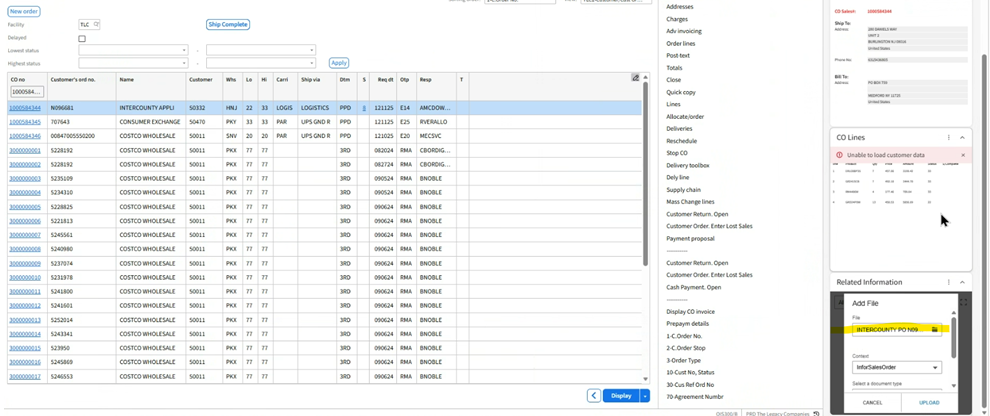
You are Now back to OIS300 (Main Screen)
Step 6: (Right side of screen)
-In the Related Information /"File" Box--> Your PO PDF Information will now reflect
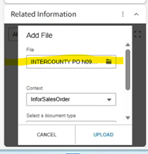
Step 7:
-Scroll Down to Related Information Box
-In the "Context" field -> This field Must reflect -> InforSalesOrder
-In the "Select a Document" Field -> This field Must reflect -> Order confirmation
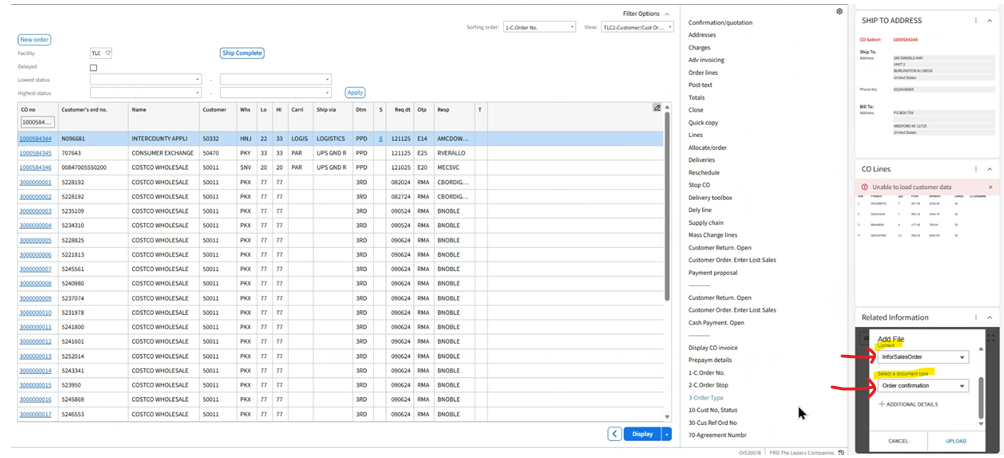
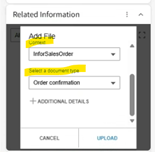
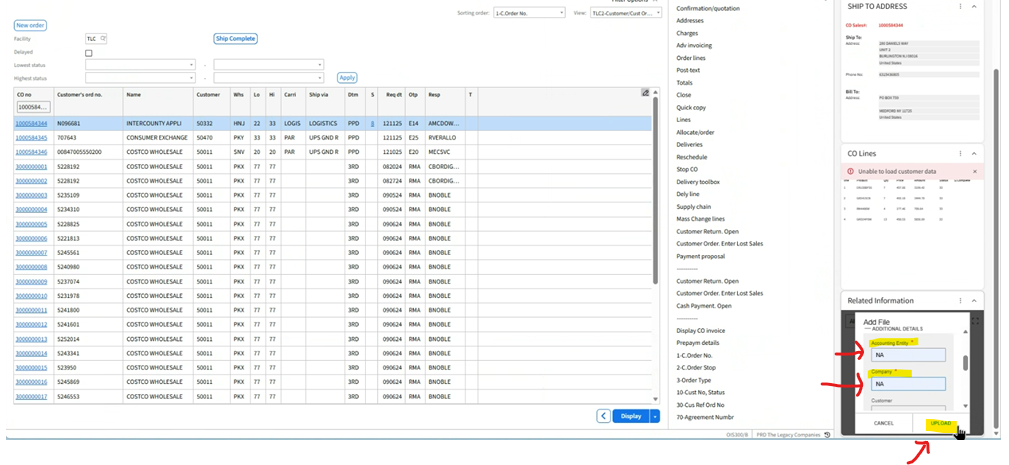
Step 8: -In the Related Information
- Click the "+" Additional Details Symbol 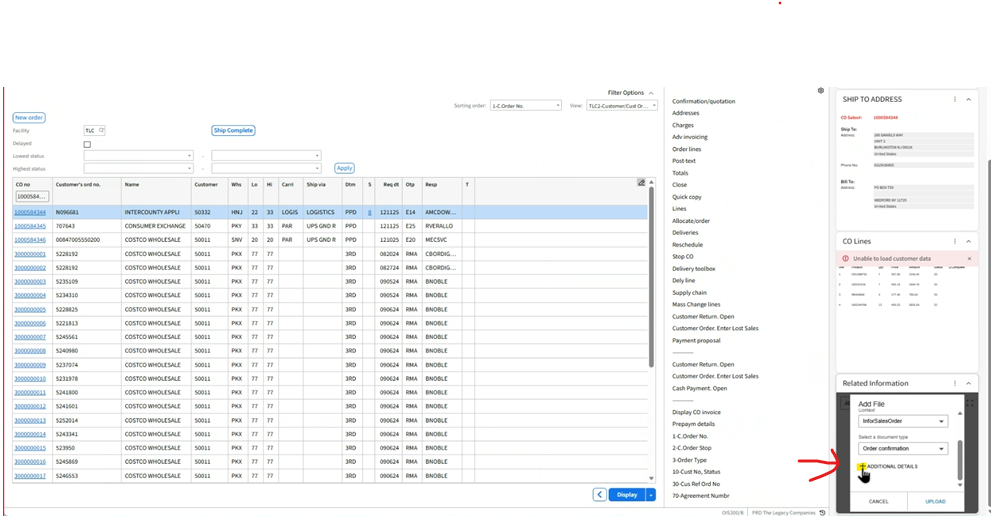
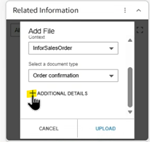
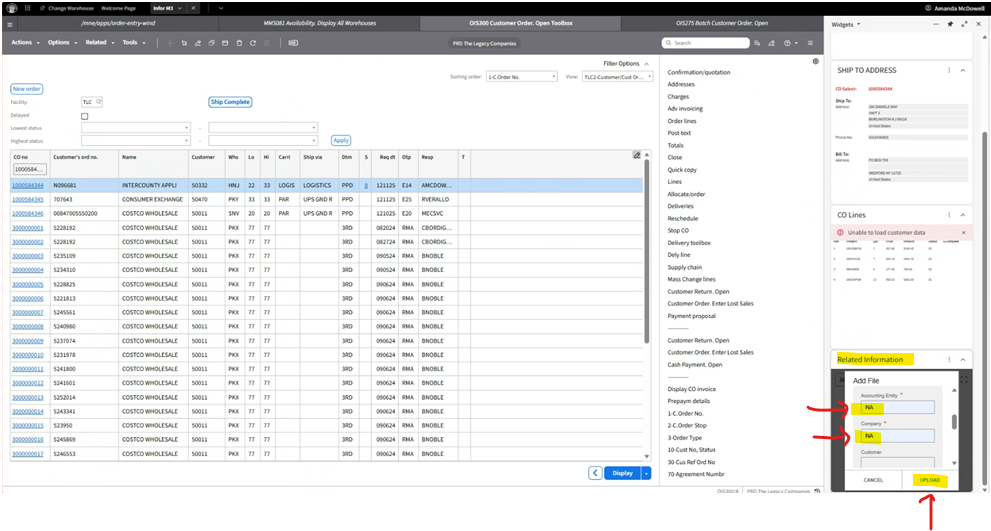
Step 9: In The Related Information Box opens up
-In the "Accounting Entity" field: Enter: NA
-In the "Company" field: Enter N/A
-Click "Upload"
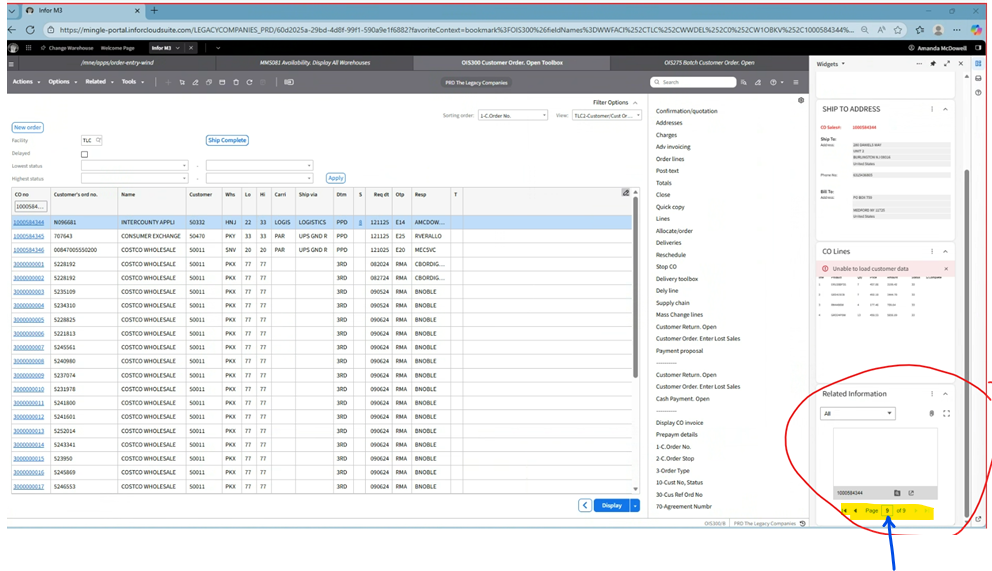
Your Number of pages in the Related field box will change (Increase) -> This is how you know everything saved.
How Save Customer M3 Sales Order Acknowledgement to PDF & to attach to the M3 Order:
Level 1:
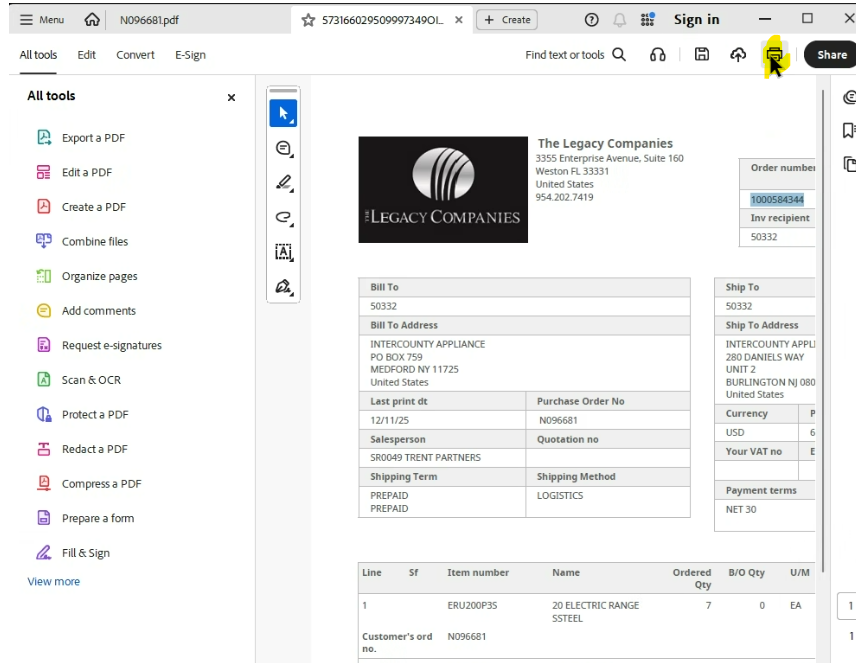
Step 1: Go to your Outlook email
- Click on the Sales Order Acknowledgement
-Do a "Save As" to a PDF
Box Populates:
-Printer: Reflects PDF
-Click Print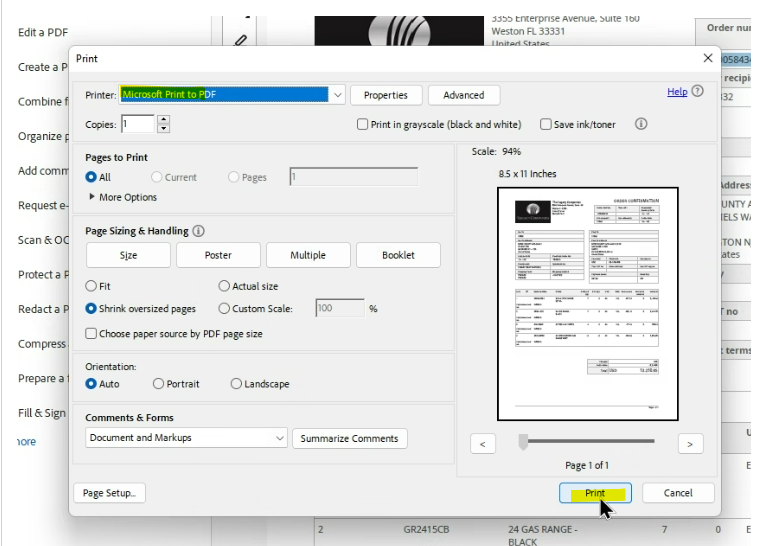
Screen Populates:
Step 2: Open your PO -> Remove the Date and Enter SO (Space) M3 Order Number
-Click "Save"
(SEE Format below)
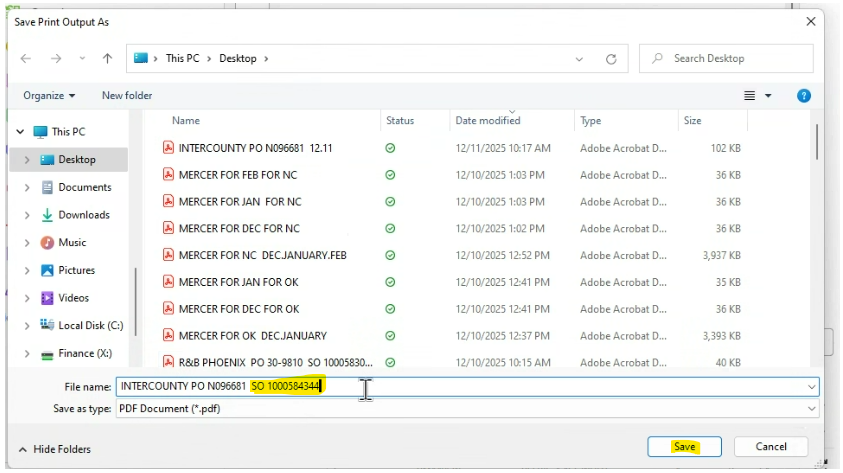
Step 3: Go to OIS300 Main Screen
-Highlight your order line
-Click Widget ( Top right side of screen)
Step 4:
Scroll down to Related Information to -In File field: Click the Paperclip Symbol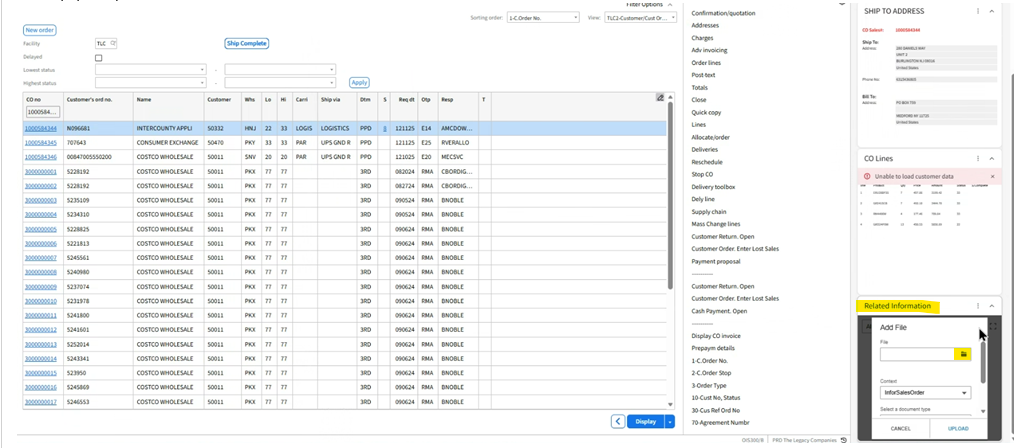
Step 5:
Pop-Up Box populates
-In the Related information Box
-In the File Field: Clicket the "Envelope" Symbol
-PDF File Populates: -> Click on your Sales Order PDF
-Click " Open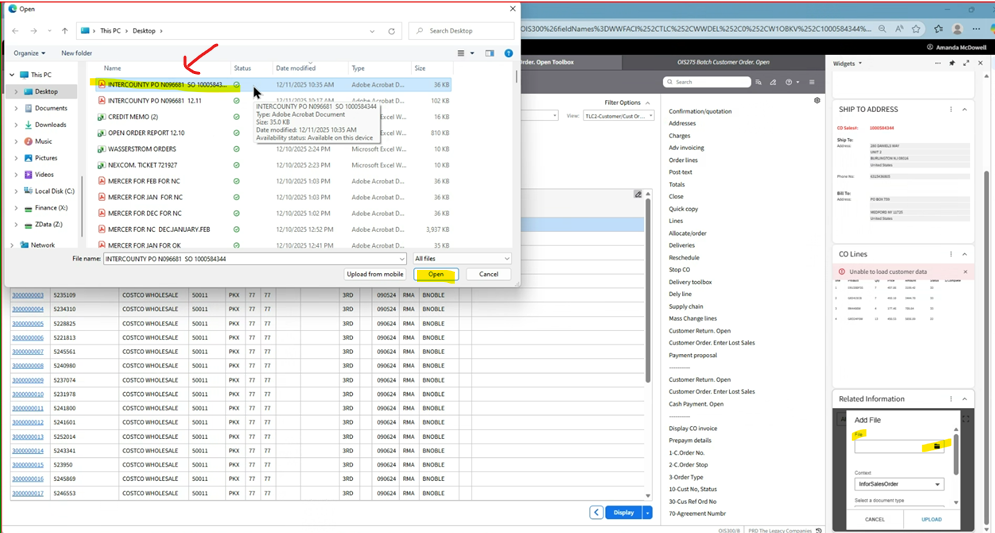
Step 6: - In the Related Information
- Click the "+" Additional Details Symbol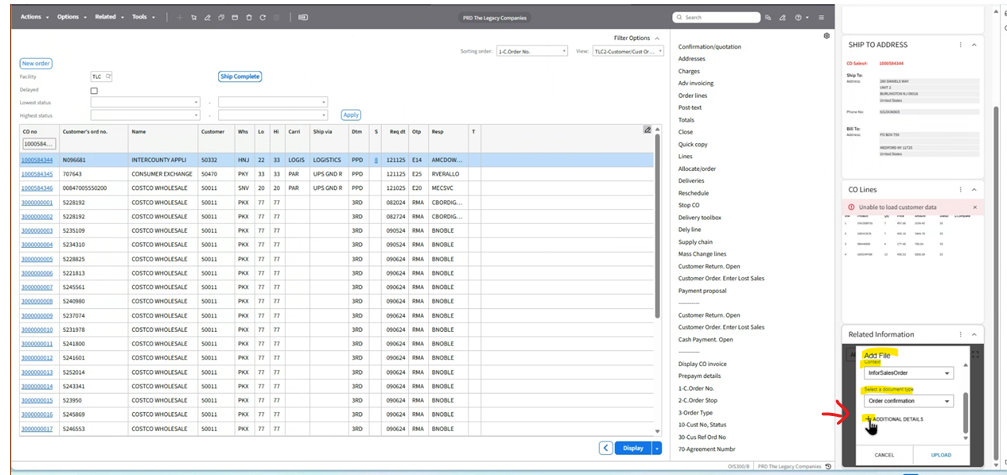
Step 7: Screen populates: Related Information Box (Add File)
-In the "Accounting Entity" field: Enter: NA
-In the "Company" field: Enter N/A
-Click "Upload"
Step 8:
Your Number of pages in the Related field box will change (Increase) -> This is how you know everything saved.
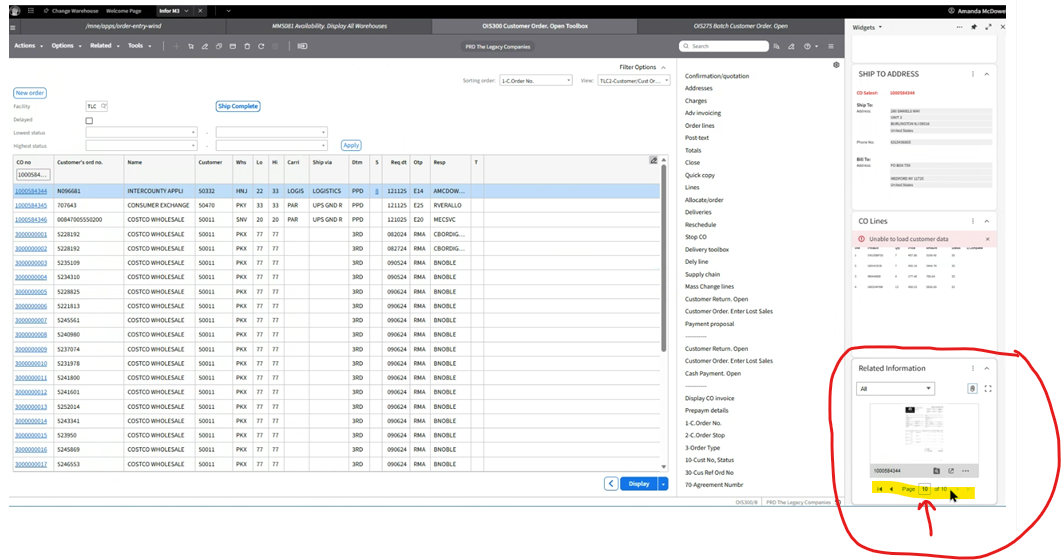
Task is now Complete: Customer PO and Sales Order Acknowledgement are now Complete.